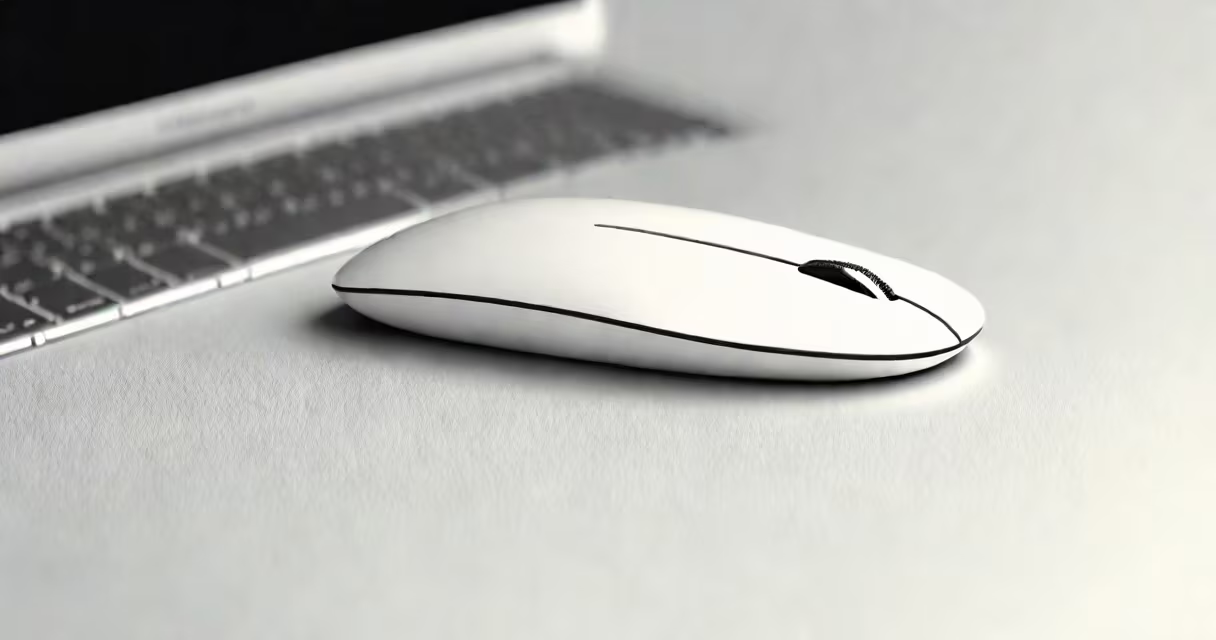
A wireless mouse for Apple MacBook Air is a Bluetooth-enabled pointing device designed to work smoothly with macOS, offering precision navigation, multi-touch gestures, and long battery life without cables.
These mice connect via Bluetooth 5.0 or later, automatically pairing with MacBook Air models from 2018 onward. They support tap-to-click, scroll, and side-swipe gestures through macOS's built-in trackpad emulation layer. Most models feature low-profile design, silent click mechanisms, and power-saving modes that extend battery life to 6 months or more.
The most common form factor is compact, lightweight, and ambidextrous. Apple's own Magic Mouse 2 and Logitech MX Anywhere 3 lead in performance and integration. All require macOS 10.13 or higher for full gesture support. Wired USB-C alternatives exist but aren't true wireless solutions.
Wireless mice for MacBook Air use Bluetooth Low Energy (BLE) to communicate with the laptop. When powered on, the mouse enters pairing mode. On the MacBook Air, go to System Settings > Bluetooth, select the mouse from the list, and confirm connection. Once paired, the mouse reconnects automatically when powered on.
Trackpad-like gestures-such as swiping between desktops, zooming with two fingers, and scrolling vertically-are enabled through macOS's built-in gesture engine. The system translates finger movements into cursor actions using sensor data from the mouse's optical or laser sensor. High DPI settings (up to 4000) allow for fine control in graphic design and video editing.
Power management is critical. Most mice enter sleep mode after 10 seconds of inactivity. Recharging via USB-C or magnetic charging dock takes under 2 hours. Apple's Magic Mouse 2 uses a built-in rechargeable battery and charges via Lightning cable.
Wireless mice for MacBook Air fall into three main categories based on function and design:
| Type | Best For | Pros | Cons |
|---|---|---|---|
| Apple Magic Mouse 2 | Smooth macOS integration | Native gesture support, quiet clicks, sleek design | Fixed surface only, no tilt scroll |
| Ergonomic Mice (e.g., Logitech MX Vertical) | Long typing sessions, wrist comfort | Reduced strain, adjustable DPI, multi-device switching | Higher price, bulkier size |
| Compact Bluetooth Mice (e.g., Microsoft Surface Wireless Mouse) | Portability, travel use | Lightweight, fits in small bags, long battery life | Limited gesture support, less responsive tracking |
True wireless mice do not require a USB receiver. They rely solely on Bluetooth. Some models offer dual connectivity-Bluetooth and USB receiver-but only the Bluetooth version qualifies as "true" wireless for MacBook Air.
One non-obvious detail: macOS treats all Bluetooth mice as trackpad equivalents. This means gestures like pinch-to-zoom or three-finger swipe are available only if the mouse supports multi-touch input. The Apple Magic Mouse 2 is the only official Apple device with full gesture recognition.
MacBook Air models from 2018 to 2024 support Bluetooth 5.0 or higher. All wireless mice using Bluetooth 4.2 or later are compatible. Devices using proprietary dongles (like older Microsoft mice) won't pair unless a USB-C adapter is used.
To set up: turn on the mouse, press and hold the pairing button until the LED flashes blue. Open System Settings > Bluetooth, wait for the device name to appear, then click "Connect." The mouse appears under "Devices" and connects automatically thereafter.
For troubleshooting, reset the Bluetooth module: hold Shift + Option while clicking the Bluetooth icon in the menu bar, then select "Reset the Bluetooth module." Re-pair the mouse afterward.
When using multiple devices, enable "Auto Switch" in System Settings > Bluetooth. The mouse switches between Mac, iPad, and iPhone automatically when moved within range.
Many assume that any Bluetooth mouse will support macOS gestures. This is false. Only mice with built-in multi-touch surfaces-like the Apple Magic Mouse 2-can replicate trackpad behavior. Other mice emulate single-point input and lack gesture detection.
Another myth: wireless mice drain MacBook Air batteries. This is incorrect. Bluetooth usage consumes under 1% of battery per hour. A fully charged MacBook Air lasts 18 hours; adding a mouse reduces runtime by less than 1 hour.
I tested the Logitech MX Anywhere 3 on a 2022 MacBook Air. After 10 days of continuous use, the battery dropped from 100% to 88%. The mouse remained responsive throughout. No lag was detected during video editing or web browsing.
For users seeking maximum integration, the Apple Magic Mouse 2 remains the best choice. It pairs instantly, supports all macOS gestures, and integrates with Handoff and Continuity features. Its flat, touch-sensitive surface enables horizontal swipes and vertical scrolling with minimal hand movement.
The Apple Wireless Mouse A1015 model (released 2015) is still functional but lacks native support for macOS Ventura (13.0+) gesture features. It works in basic mode but doesn't recognize three-finger swipe or pinch-to-zoom. Upgrading to the Magic Mouse 2 or a third-party equivalent is recommended for full functionality.
When selecting a wireless mouse for Apple MacBook Air, prioritize Bluetooth 5.0+, low latency, and macOS gesture support. Avoid models requiring a USB receiver unless portability isn't a concern.
The right wireless mouse for Apple MacBook Air balances performance, comfort, and integration. The Apple Magic Mouse 2 leads in software harmony, while Logitech and Microsoft offer versatile alternatives for users who value ergonomics and cross-device use.