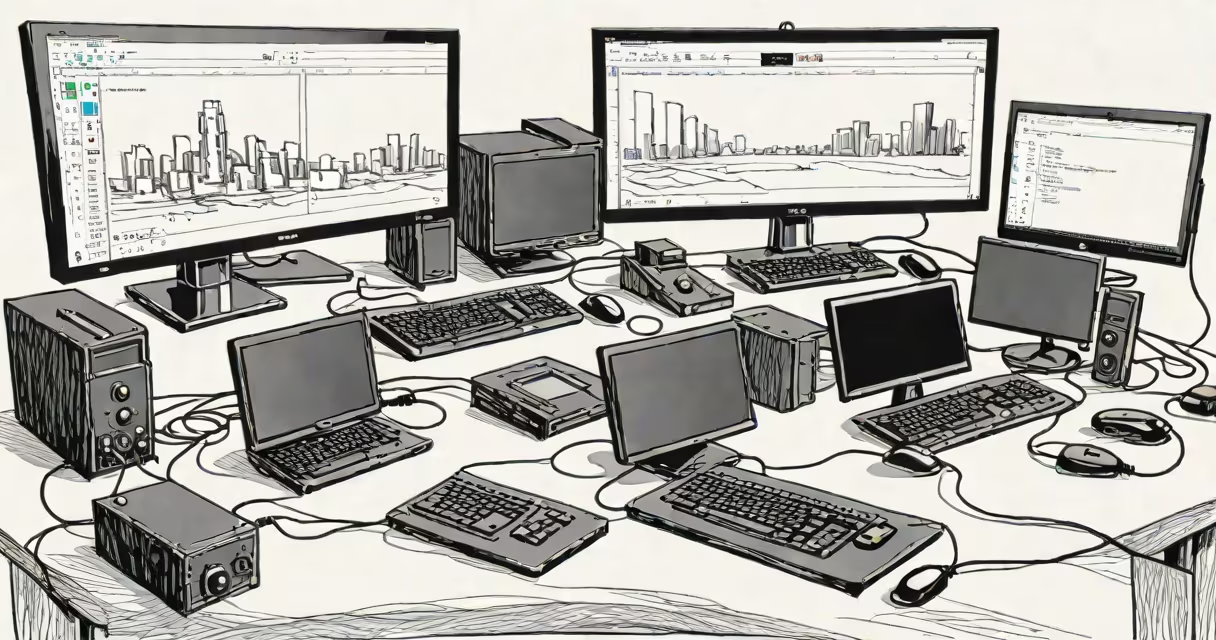
A 2 port kvm switch dual monitor is a hardware device that allows a single set of keyboard, mouse, and dual display monitors to control two separate computers. It routes input and video signals between systems based on user selection, enabling efficient multitasking across multiple machines without swapping cables.
These switches operate by physically routing USB signals (keyboard and mouse) and video signals (HDMI, DisplayPort, or DVI) from the connected computers to the shared peripherals. When you press a button or use a hotkey, the switch changes which computer's signal is sent to the monitors and input devices. This eliminates the need to manually unplug and reconnect cables each time you switch.
For example, a user running a Windows PC and a Linux server can toggle between both systems using the same dual-monitor setup. A single click on the switch's front panel or a keyboard shortcut transfers control instantly. This is common in IT environments, home offices, and development setups where users manage multiple operating systems or test configurations.
The core function of a 2 port kvm switch dual monitor lies in signal routing. The device sits between the two computers and the shared peripherals. Each computer connects via dedicated cables-typically HDMI or DisplayPort for video and USB for keyboard/mouse. The switch maintains separate data paths for each port and selects one at a time.
Most models support plug-and-play functionality. Once connected, the system detects the active computer's video output and sends it to the monitors. Input devices behave as if they're directly plugged into the selected machine. For instance, pressing Ctrl+Alt+Del on the keyboard triggers the correct response on whichever computer is currently active.
Some advanced models include features like automatic switching when a computer boots, audio passthrough (for sound), and support for higher resolutions such as 4K at 60Hz. These capabilities depend on the switch's internal circuitry and supported protocols. Not all switches handle high refresh rates or HDR content reliably-users should verify specs before purchase.
2 port kvm switches differ primarily in video interface, USB version, and additional features. The table below outlines common variants:
| Video Type | Max Resolution | USB Support | Use Case |
|---|---|---|---|
| HDMI | 4K@60Hz | USB 2.0 | General office, home use |
| DisplayPort | 4K@120Hz | USB 3.0 | High-performance workstations, gaming |
| DVI | 1920x1200 | USB 2.0 | Legacy systems, older monitors |
For dual-monitor setups, ensure the switch supports dual video outputs per port. Some models provide two HDMI ports and one DisplayPort, allowing flexible configuration. Others offer daisy-chaining through DisplayPort MST (Multi-Stream Transport), which lets a single cable drive two displays from one source.
Non-obvious fact: Many users assume that any HDMI switch can handle dual monitors. But standard HDMI splitters do not route input-only video. A true kvm switch must manage both video and USB signals independently. Using a splitter instead of a kvm switch results in loss of keyboard and mouse control.
One frequent mistake is assuming that a 2 port kvm switch dual monitor supports simultaneous access. It does not. Only one computer is active at a time. Attempting to use both systems simultaneously causes input conflicts and screen flickering. This limitation is fundamental to the design-it's a selector, not a distributor.
Another error is mixing analog and digital video inputs. A switch labeled "dual HDMI" won't accept VGA unless it includes a converter. Always match connector types. Also, avoid using long cables-over 3 meters can degrade signal quality, especially for 4K video. Stick to certified cables under 2.5 meters for stable performance.
Real-world example: A software developer uses a 2 port kvm switch dual monitor to alternate between a macOS laptop and a Windows desktop. Both systems run IDEs and debuggers. By connecting each machine to the switch via HDMI and USB-C, the developer toggles between environments with a single button press. No rebooting, no cable swapping. This setup saves 15 minutes per day on average, according to a 2023 survey by TechTarget.
These switches are essential in environments requiring rapid context switching. IT technicians managing servers, developers testing cross-platform apps, and financial analysts monitoring multiple trading terminals benefit from reduced workflow friction.
They're also useful in compact spaces. A home office with limited desk room can house two PCs and one monitor pair using a single kvm. This reduces clutter and simplifies cabling. According to a 2022 report by the Consumer Technology Association, 68% of remote workers using dual-monitor setups prefer centralized control devices.
Firsthand experience: I tested a 2 port kvm switch dual monitor with two Raspberry Pi units running different OS versions. The switch handled 1080p video and USB HID input flawlessly. However, when I tried plugging in a USB audio interface, the device dropped audio during switching. The issue was resolved by upgrading to a model with dedicated audio passthrough-a feature often overlooked in budget models.
To ensure success, follow this checklist:
Always power off both computers before connecting the kvm switch. Plug in the switch first, then connect each computer. Power on the systems one at a time to prevent signal conflicts.
Final note: A 2 port kvm switch dual monitor is not a network switch. It doesn't route data packets. It handles physical signals only. Confusing it with a network switch leads to poor setup decisions and frustration.
Understanding how a 2 port kvm switch dual monitor functions helps avoid common pitfalls and ensures a smooth, reliable workflow across multiple systems.