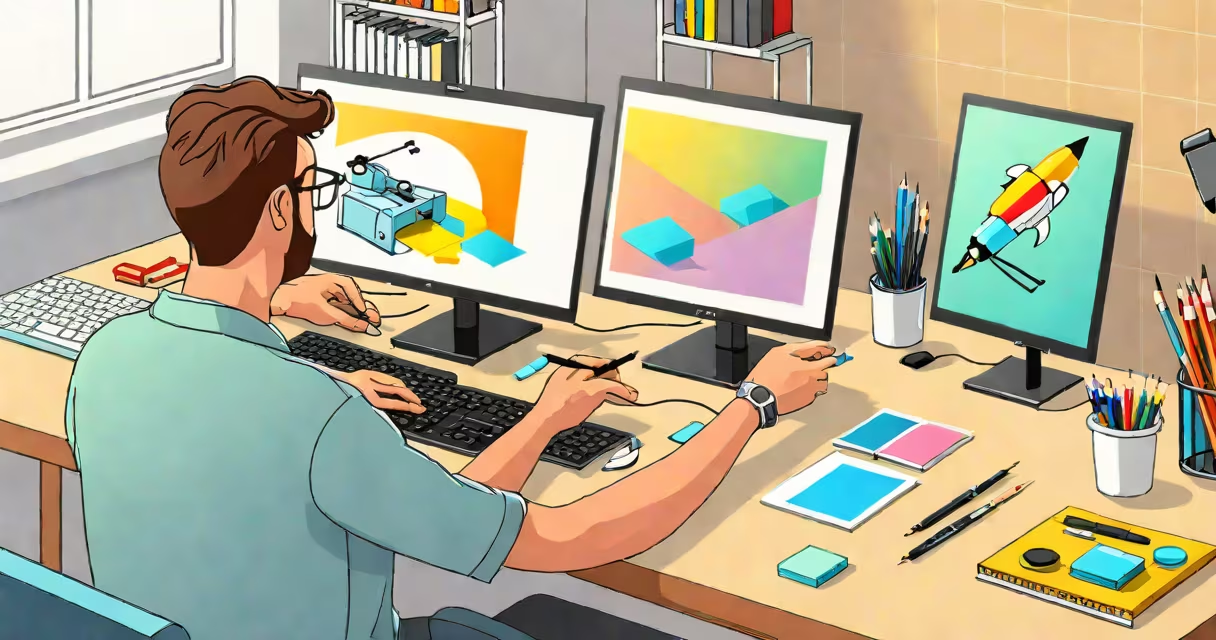
The best drawing tool for PC is a software application designed for digital illustration, animation, and graphic design, offering pressure-sensitive brush control, layer management, and export options tailored for Windows systems. These tools support graphics tablets and deliver professional-grade results for artists, illustrators, and designers.
Modern drawing tools run on Windows 10 or 11 and integrate with hardware like Wacom, Huion, and XP-Pen tablets. They process vector and raster graphics, support multiple canvas sizes, and allow undo history spanning hundreds of steps. Core features include customizable brushes, blending modes, selection tools, and export formats such as PNG, JPEG, PSD, and SVG.
Adobe Photoshop and CorelDRAW are industry standards, but free and open-source alternatives like Krita and FireAlpaca offer comparable functionality. Performance depends on GPU acceleration, RAM allocation, and tablet driver compatibility. A stable system with at least 8GB RAM and a dedicated GPU improves responsiveness during complex edits.
These tools render images through a combination of CPU and GPU processing. When you draw, the software captures input from a stylus or mouse, maps pressure sensitivity to brush opacity or size, and applies effects in real time. Each stroke is stored as a vector path or pixel data depending on the mode.
Layers act as transparent sheets stacked above one another. You can adjust visibility, opacity, and blending behavior independently. This allows for non-destructive editing-changing one layer doesn't affect others. Tools like the lasso, magic wand, and pen tool enable precise selections for masking or color fills.
For example, when creating a character concept, an artist might sketch the outline on one layer, add shading on another, and apply highlights on a third. The software calculates each layer's contribution to the final image during rendering. Exporting generates a flattened file suitable for web, print, or animation use.
Drawing tools fall into three categories based on workflow: raster-based, vector-based, and hybrid. Raster tools work with pixels-ideal for painting and photo manipulation. Vector tools use mathematical paths-better for logos, icons, and scalable artwork. Hybrid tools combine both approaches.
| Type | Best For | Examples | Key Strengths |
|---|---|---|---|
| Raster | Painting, textures, photo editing | Photoshop, Krita, Procreate (via emulation) | High brush detail, texture support, realistic blending |
| Vector | Logos, illustrations, animations | CorelDRAW, Affinity Designer, Inkscape | Scalable without quality loss, clean lines, small file size |
| Hybrid | Full creative workflows | Clip Studio Paint, Adobe Illustrator | Combines raster and vector layers, supports animation |
Krita stands out among free tools. It includes over 100 brush presets, animation frames, and a color picker with hex code output. It runs natively on Windows and supports custom brush engines. According to the Krita Foundation, version 5.2 improved GPU rendering by 40% compared to v4.4, reducing lag during high-density brushwork.
FireAlpaca is lightweight and optimized for low-end PCs. It uses minimal RAM and loads in under 3 seconds. Despite its simplicity, it supports layers, masks, and basic animation. It's popular with beginners and mobile artists who transfer sketches to desktop.
Many assume that "best" means "most expensive." That's incorrect. Free tools like Krita and Inkscape match or exceed paid software in core functionality. Krita's brush engine rivals Photoshop's in realism and pressure response, according to a 2023 comparison by Digital Arts magazine.
Another myth is that all drawing tools require a graphics tablet. While tablets improve precision, most tools support mouse input. You can create detailed work using a mouse, though it lacks pressure sensitivity and may feel less natural for long sessions.
A lesser-known fact: some tools auto-save every 60 seconds. Photoshop autosaves project files to a temporary folder unless disabled. If you lose power during a session, recovery is possible-but only if auto-save is enabled. Always verify this setting before starting a large project.
I used Krita to create a fantasy field for a tabletop RPG campaign. I began with a 3000×2000 canvas at 300 DPI. Using a Wacom Intuos 5 tablet, I applied a soft airbrush with 20% opacity to build base shadows. I then layered a dry brush with 30% flow to simulate distant mountain textures.
After blocking in terrain, I added a sky gradient using the radial gradient tool. I selected a blue-to-purple blend and adjusted the center point to avoid flatness. Next, I used the clone stamp to replicate rock formations across the foreground. The tool sampled nearby pixels and mirrored them with slight variation-mimicking natural erosion.
Export settings mattered. I saved the final image as a PNG with transparency for game assets and a JPG version at 90% quality for social media. Both exported in under 10 seconds due to GPU acceleration. The entire process took 47 minutes, including cleanup and adjustments.
When choosing the best drawing tool for PC, prioritize compatibility with your hardware, supported file formats, and community resources. Tools like Krita have active forums and tutorials. Adobe's official site provides step-by-step guides for Photoshop users. Check system requirements before installing-some tools demand DirectX 12 or Vulkan support.
The best drawing tool for PC is the one that aligns with your workflow, budget, and artistic goals. Test a few options with sample projects before committing. Many offer free trials or permanent free versions. Start small, experiment widely, and refine your choice through hands-on use.