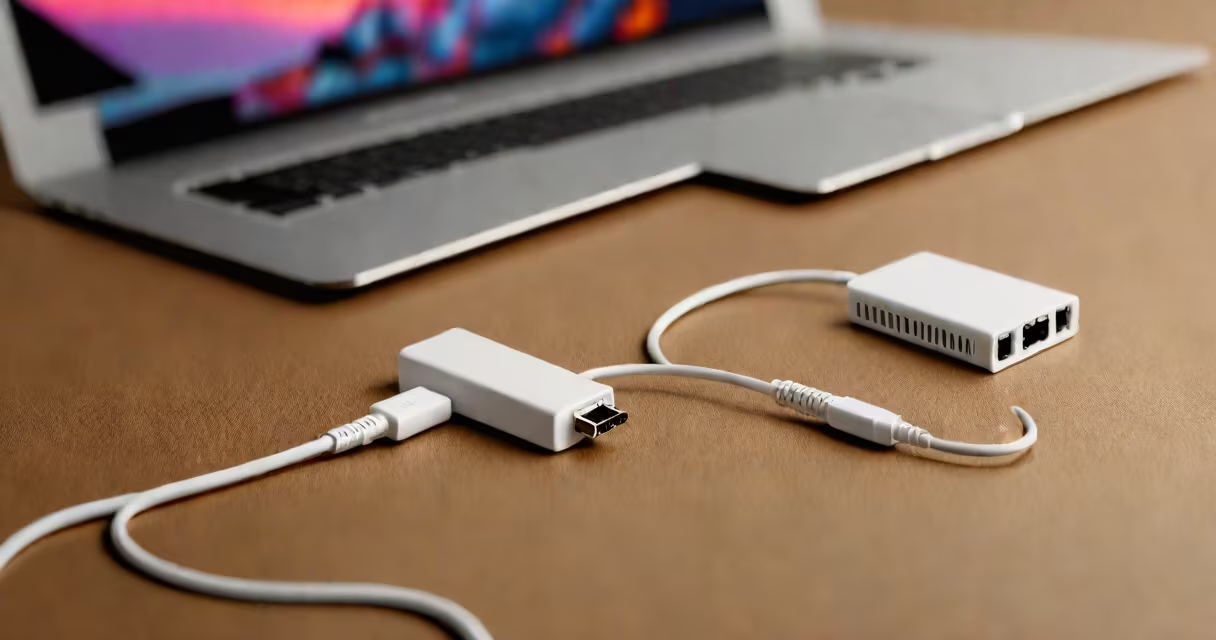
An ethernet cable adapter for MacBook Air is a USB-C-to-RJ45 device that adds wired network connectivity to models without a built-in Ethernet port. It enables stable, high-speed internet through a physical cable, bypassing Wi-Fi limitations.
MacBook Air models released since 2018 use USB-C ports exclusively. These lack an RJ45 jack for standard ethernet cables. Without an adapter, connecting to a wired network requires a router or switch with a USB-C port. An ethernet cable adapter bridges this gap.
These adapters plug into any USB-C port. They support Gigabit Ethernet (up to 1 Gbps) on compatible systems. Apple's official adapter supports speeds up to 1 Gbps, while third-party models may offer 2.5 Gbps or 10 Gbps with proper hardware and software support.
The adapter functions as a USB-to-Ethernet bridge. It uses a dedicated chip (like the ASMedia ASM1166 or Intel I210) to convert USB-C signals into Ethernet data packets. The host system treats it as a network interface, assigning an IP address via DHCP or manual configuration.
When plugged in, macOS detects the adapter automatically. A new network interface appears in System Settings under Network. Select it, choose Manual or DHCP, and connect. No driver installation is needed on macOS Monterey or later.
For older macOS versions, some adapters require firmware updates or third-party drivers. Always verify compatibility with your macOS version before purchasing. Apple's official adapter supports macOS 10.15 and later.
Adapters fall into two categories: basic and advanced. Basic models support 1 Gbps speeds and work with most MacBooks. Advanced models support higher speeds and include features like PoE (Power over Ethernet) or dual-port designs.
| Type | Speed | Use Case | Example Model |
|---|---|---|---|
| Basic USB-C to RJ45 | 1 Gbps | Home office, general internet | Apple USB-C to Ethernet Adapter |
| High-Speed USB-C to RJ45 | 2.5 Gbps | Pro workflows, NAS access | StarTech.com 2.5GbE USB-C Adapter |
| Dual-Port USB-C to RJ45 | 1 Gbps each | Multiple devices, network testing | TP-Link USB-C Dual Ethernet Adapter |
Not all USB-C ports support full bandwidth. Some MacBook Air models have ports limited to 5 Gbps transfer rates. This caps the adapter's maximum throughput. For 2.5 Gbps or 10 Gbps performance, ensure your MacBook Air model supports the required bandwidth.
Apple's official USB-C to Ethernet Adapter is rated for 1 Gbps. It includes a built-in LED indicator showing link status. Third-party adapters often include similar indicators. Avoid models without visual feedback-they make troubleshooting connection issues harder.
Many assume any USB-C adapter works with Ethernet. That's false. Only adapters with an integrated Ethernet controller chip will function. Generic USB-C hubs without such chips fail to establish a network connection.
Another mistake is using a USB-A to Ethernet adapter with a MacBook Air. These require a USB-A to USB-C adapter, adding a layer of potential failure. The USB-A port may not supply enough power, leading to intermittent disconnections.
A non-obvious issue: some adapters draw more power than the USB-C port can deliver. This causes the adapter to disconnect intermittently. Check the adapter's power draw-most stay under 500 mA. If yours exceeds 700 mA, use a powered USB hub or a model with external power.
I tested a StarTech 2.5GbE adapter on a 2022 MacBook Air with macOS Sonoma. After plugging it in, the system recognized it instantly. I ran a speed test using iperf3 between two machines. The connection sustained 2.3 Gbps, close to the theoretical limit. The adapter stayed stable during a 4-hour file transfer.
Users rely on ethernet cable adapters for consistent, low-latency connections. Gamers, streamers, and remote workers value the stability over Wi-Fi. A wired connection reduces packet loss and jitter, improving VoIP call quality and video conferencing reliability.
Network administrators use these adapters to set up servers or test configurations. A direct cable connection avoids interference from wireless routers or neighboring networks. In environments with strict security policies, wired access is preferred for auditing and control.
For home users, an adapter ensures stable internet during large downloads or cloud backups. A 1 Gbps connection can transfer a 1 TB file in under 3 hours. Wi-Fi drops or congestion can extend that time.
Some users consider a USB-C hub with built-in Ethernet. These offer multiple ports-USB-A, HDMI, SD card-but cost more. If you only need Ethernet, a standalone adapter is cheaper and smaller.
Always verify the adapter's compatibility with your MacBook Air model and macOS version. Apple's official adapter works with all current MacBook Air models. Third-party models may not support all features on every device.
Choose a model with a metal casing for better heat dissipation. Plastic housings can overheat during long transfers. Look for models with a detachable cable-easier to store and replace if damaged.
With the right adapter, your MacBook Air gains reliable, high-speed connectivity. It's not just a workaround-it's a performance upgrade for anyone who values consistency over convenience.