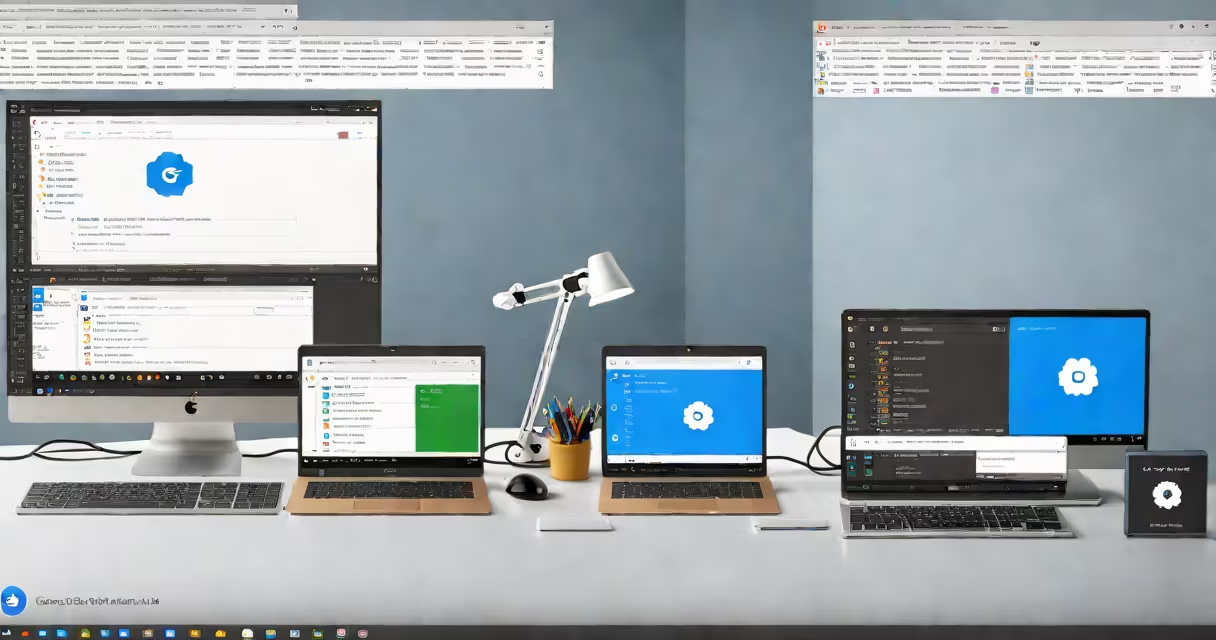
Google Cloud IDE is a cloud-hosted development environment accessible through a web browser, enabling users to write, test, and deploy applications directly within Google Cloud Platform. It runs on virtual machines provisioned by Google, eliminating the need for local setup.
Developers use Google Cloud IDE to access a full Linux environment with pre-installed tools like Git, Python, Node.js, and Docker. This environment persists across sessions and can be accessed from any device with internet connectivity. The primary interface is a web-based code editor integrated with a terminal, file browser, and debugging tools.
Google Cloud IDE is not a standalone product but part of a broader set of developer tools under Google Cloud Platform. It includes Google Cloud Shell-a free, temporary environment available to all GCP users-and managed IDEs like Cloud Code, which extend functionality into Kubernetes and containerized workflows.
When you launch Google Cloud IDE, a virtual machine spins up in your project's region. The system assigns a unique IP address and mounts persistent storage tied to your account. All files saved in the editor are stored in Google Cloud Storage or Persistent Disk, depending on configuration.
The environment runs a lightweight desktop environment with a web-based code editor based on Monaco Editor-the same engine behind Visual Studio Code. You can open multiple files, run scripts via the embedded terminal, and debug applications using built-in breakpoints and logs.
For example, launching Cloud Shell gives immediate access to the gcloud command-line tool. Running gcloud auth login authenticates your session, after which you can create a Compute Engine instance with gcloud compute instances create my-instance --zone=us-central1-a.
Google Cloud IDE comes in several forms, each suited to different workflows:
| Type | Access Method | Use Case | Duration |
|---|---|---|---|
| Cloud Shell | Browser-only | Quick commands, one-off deployments | Short-lived (max 20 hours) |
| Cloud Code (IDE plugin) | VS Code / IntelliJ integration | Full-stack development with Kubernetes | Persistent (local machine sync) |
| Cloud Workstations | Remote desktop via browser | Team-based development, secure environments | Long-term (configurable lifetime) |
Cloud Shell is ideal for executing gcloud commands, managing resources, and running scripts. It requires no installation and resets after inactivity. Cloud Code extends VS Code with GCP integrations, allowing developers to deploy containers directly to Google Kubernetes Engine.
Cloud Workstations provide a secure, isolated workspace for teams. They support multi-user collaboration and integrate with Identity-Aware Proxy (IAP) for authentication. A single workstation can host multiple projects and persist state across sessions.
Many assume Google Cloud IDE is a full replacement for local development environments. It is not. While it offers remote execution and file management, performance depends on network speed. Complex builds may take longer than on a high-end local machine.
Another misunderstanding is that Cloud Shell provides permanent storage. It does not. Files saved in the default home directory are lost after 20 hours of inactivity or when the session ends. To preserve work, users must explicitly copy files to Cloud Storage or mount a Persistent Disk.
A lesser-known fact: Google Cloud IDE automatically detects project structure. When you open a repository with a requirements.txt file, it prompts to install dependencies via pip. For Node.js projects, it auto-detects package.json and suggests installing packages with npm.
In a recent project, a team deployed a Flask API to App Engine using only Cloud Shell. They created a new project, initialized a Git repository, and added a main.py file containing:
from flask import Flask
app = Flask(__name__)

@app.route('/')
def hello():
    return 'Hello from Google Cloud!'

if __name__ == '__main__':
    app.run(host='0.0.0.0', port=8080)
They ran gcloud app deploy from the terminal. The deployment took 4 minutes and returned a URL. Accessing the URL displayed the expected response. The entire workflow-from code creation to live deployment-was completed in under 10 minutes with no local setup.
This example shows how Google Cloud IDE reduces friction in the development lifecycle. It enables rapid prototyping, especially for teams using CI/CD pipelines integrated with Cloud Build.
When scaling beyond individual tasks, building a full application on Google Cloud becomes manageable through consistent tooling. Developers can version control their entire stack using Cloud Source Repositories and trigger deployments via Cloud Build triggers.
As a personal note, during a hackathon, I used Cloud Shell to set up a serverless function with Firebase Authentication. The process required only three commands: initializing the project, adding a trigger, and deploying. The function responded to HTTP requests within 60 seconds of deployment.
Google Cloud IDE is not a substitute for local development in performance-critical scenarios. But for rapid iteration, team collaboration, and cloud-native workflows, it delivers a streamlined path from idea to production.