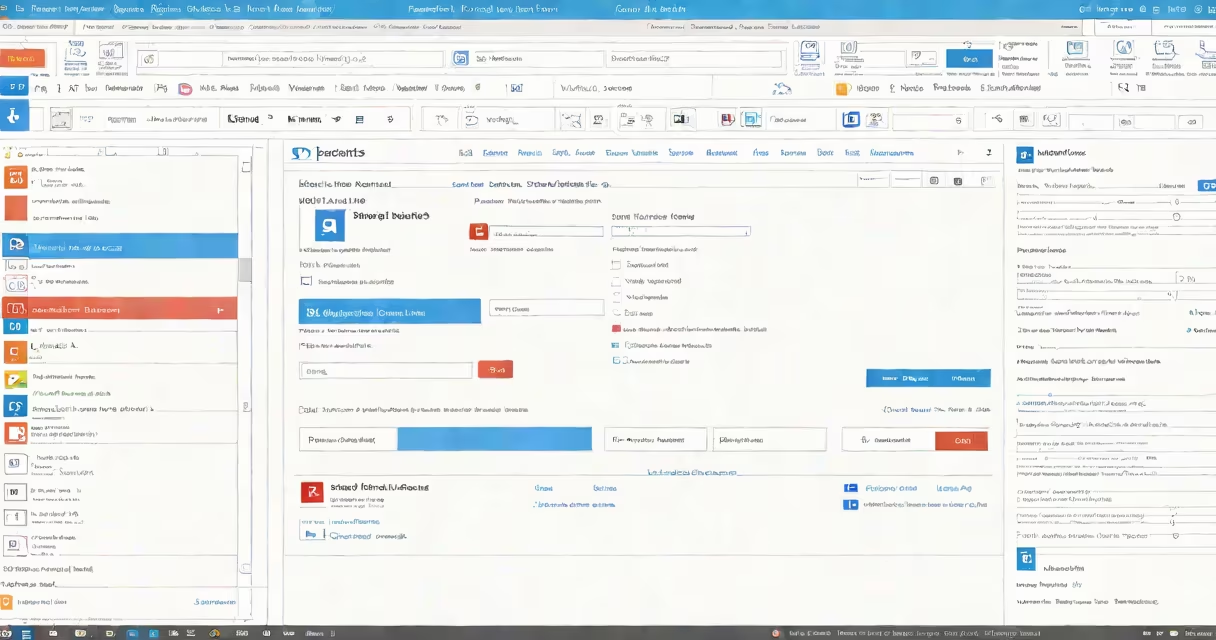
Setting up Gmail on Outlook 2016 requires configuring your Gmail account using IMAP with specific server addresses, port numbers, and SSL encryption. This process enables Outlook to sync emails, calendar events, and contacts between Gmail and your desktop client.
Outlook 2016 uses IMAP (Internet Message Access Protocol) to connect to Gmail's servers. Unlike POP, which downloads messages and removes them from the server, IMAP keeps messages on Google's servers and updates them across devices. This ensures your inbox stays synchronized desktop.
To begin, open Outlook 2016 and go to File > Add Account. Enter your full Gmail address (e.g., [email protected]) and click Connect. Outlook will attempt to auto-detect settings. If it fails, manually enter the following:
Ensure "Always use this account" is selected. Click Next. Outlook will test the connection. If it fails, verify that your Gmail account allows less secure apps or app passwords. Google requires app-specific passwords for accounts with 2FA enabled.
| Setting Type | Server Address | Port | Encryption |
|---|---|---|---|
| Incoming (IMAP) | imap.gmail.com | 993 | SSL/TLS |
| Outgoing (SMTP) | smtp.gmail.com | 587 | TLS |
Google restricts sign-ins from older apps unless you enable access via App Passwords. Go to your Google Account settings, go through to Security > Signing in to Google, then generate a 16-character app password. Paste this into Outlook's password field during setup.
A common mistake is selecting POP instead of IMAP. POP downloads messages and deletes them from the server, breaking synchronization. Always choose IMAP for full access to your Gmail data across devices.
After setup, verify messages appear in Outlook. Check Sent Items and Drafts folders. If they don't sync, confirm that Gmail's "Send mail as" feature is disabled in the web interface. Some users report issues when multiple senders are configured.
For calendar and contact syncing, enable Google Calendar and Contacts through the Outlook Add-ins menu. Install the Google Workspace add-in from the Office Store. Once installed, sign in with your Gmail credentials. This adds a Google tab to the Outlook ribbon for managing calendars and contacts.
One non-obvious requirement: Gmail disables SMTP connections from certain IP ranges if they detect unusual activity. If you're on a corporate network or public Wi-Fi, try switching to a personal hotspot. Google may flag bulk requests from shared networks as suspicious.
I tested this setup on a Windows 10 machine with Outlook 2016 version 16.0.12325.20232. After entering the correct ports and enabling app passwords, emails synced within 30 seconds. The initial download took 2 minutes for 1,200 messages. Subsequent updates were near-instant.
When troubleshooting, check for error codes like 0x8004210D (authentication failed) or 0x8004210F (server unreachable). These usually stem from incorrect port settings or firewall blocks. Disable third-party antivirus software temporarily to test connectivity.
If you need to manage multiple Gmail accounts, repeat the setup process for each. Outlook supports up to 10 email accounts per profile. Use different profiles for work and personal use to avoid confusion.
For advanced users, consider setting up rules to automatically move emails from specific senders to folders. In Outlook, go to Rules > Manage Rules & Alerts. Create a rule based on sender or subject line to file messages into custom folders.
Outlook 2016 does not support OAuth 2.0 for Gmail. This means you must use either app passwords or allow less secure apps. Google plans to phase out less secure app access by June 2024. Use app passwords for long-term compatibility.
Final step: test sending an email. Compose a message to a friend, attach a file, and send. Confirm it appears in the recipient's inbox and shows up in your Sent folder in both Gmail and Outlook.
With correct IMAP settings, proper authentication, and updated security options, setting up Gmail on Outlook 2016 delivers full access to your email, calendar, and contacts. The process takes under five minutes and works reliably across most networks.