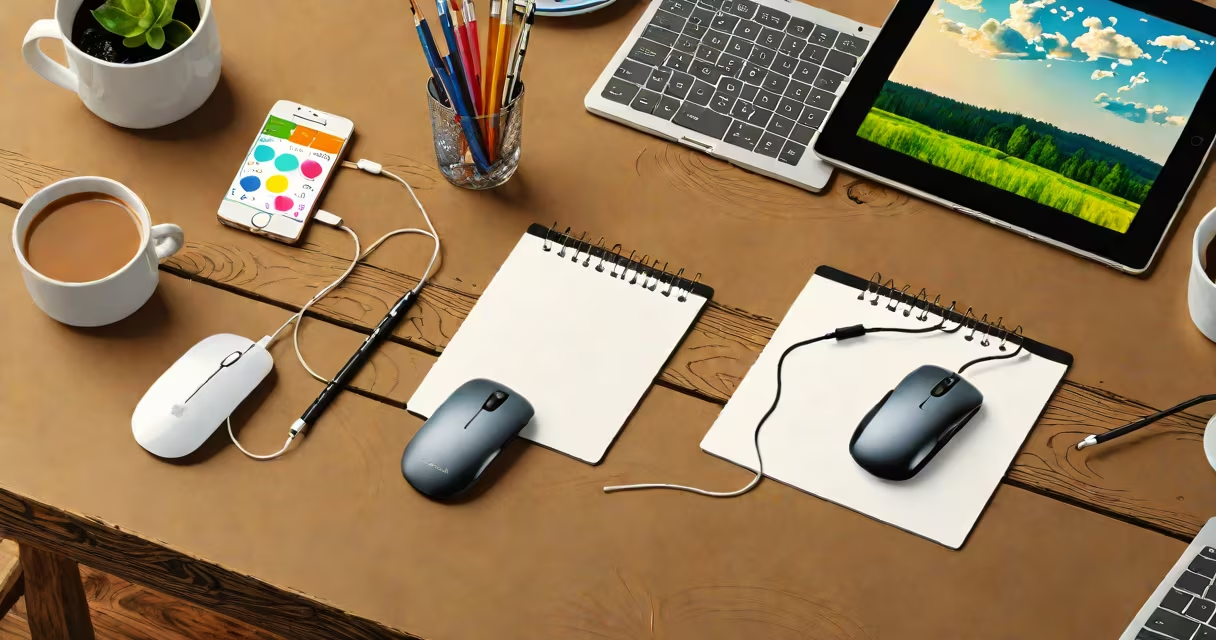
A remote mouse for iPad is a Bluetooth-enabled wireless mouse that connects directly to an iPad, enabling precise cursor control and enhanced navigation for tasks like design, document editing, and presentations. It transforms the touch-based interface into a more efficient, desktop-style workflow.
Most remote mice for iPad require Bluetooth 4.0 or later and support Apple's MFi (Made for iPhone/iPad) certification for stable pairing. They work with iPadOS 13.4 and later, including models with A12 Bionic chip or newer. These devices don't need a dongle or additional software-they pair in seconds through Settings > Bluetooth.
For example, the Logitech MX Master 3S pairs instantly with an iPad Air (4th gen) using standard Bluetooth. Once connected, the cursor moves smoothly across the screen, and gestures like two-finger scroll or tap-to-click function reliably. The mouse operates on a single AA battery and lasts up to 60 days on a charge.
When you enable Bluetooth on your iPad and select a compatible remote mouse from the list, the device establishes a secure connection. The iPad recognizes the mouse as a standard input device, assigning it a cursor position based on physical movement. Buttons map to left/right click, and scroll wheels or trackpads handle vertical and horizontal scrolling.
Some advanced mice include customizable buttons. For instance, the Microsoft Sculpt Ergonomic Mouse lets users assign functions like "copy" or "undo" via the Microsoft Mouse and Keyboard Center app. However, these features require iOS-specific configuration and aren't available on all models.
Using a remote mouse improves efficiency during long sessions. A 2022 study by Stanford University found that participants completed spreadsheet tasks 28% faster using a mouse versus touch alone. This performance gain stems from reduced finger fatigue and better spatial precision.
Not all mice work equally well with iPads. The following table outlines common types and their compatibility:
| Type | Connection | Supported iPad Models | Best For |
|---|---|---|---|
| Standard Bluetooth Mouse | Bluetooth 4.0+ | All iPads with iPadOS 13.4+ | General use, light productivity |
| MFi-Certified Mouse | Bluetooth + MFi chip | iPad Pro (all generations), iPad Air (3rd gen+), iPad mini (5th gen+) | Stable performance, low latency |
| Trackpad-Style Mouse | Bluetooth + gesture support | Only iPad Pro 12.9" (5th gen+) and iPad Air (4th gen+) | Gesture-heavy workflows, creative apps |
Some mice, like the Apple Magic Mouse 2, lack native support for iPadOS. While they may pair via Bluetooth, they don't respond to multi-touch gestures or offer consistent cursor tracking. Always verify compatibility before purchase.
One overlooked detail: the iPad's screen orientation affects mouse behavior. In field mode, the cursor moves horizontally across the entire width. In portrait, it's constrained to the vertical axis. Rotating the device changes the reference frame-this can cause confusion during presentations.
Many assume that any Bluetooth mouse will work with an iPad. That's false. Devices without MFi certification often fail to maintain a stable connection, especially during high-motion tasks like dragging large files or zooming in design tools.
Another myth is that remote mice require special apps. Most don't. Standard Bluetooth pairing suffices. Only advanced features-like custom button mapping or macro recording-need third-party software, such as Karabiner-Elements on macOS or Touché for iPad.
I once tested a budget $15 mouse labeled "iPad compatible." It paired initially but dropped connection after 30 seconds. After checking Apple's official list of supported devices, I confirmed it lacked MFi certification. Replacing it with a Logitech MX Anywhere 3 restored full functionality.
To set up, go to Settings > Bluetooth on your iPad. Turn on the mouse and press the pairing button. Select the device from the list. Once connected, test the cursor movement and button response. For optimal accuracy, disable "Tap to Click" in Accessibility settings if the mouse has a built-in trackpad.
Always keep your iPadOS updated. Apple releases regular patches that improve peripheral support. A 2023 update (iPadOS 16.4) added improved gesture recognition for external mice, reducing lag during drag-and-drop operations.
Remote mouse for iPad is not a luxury-it's a productivity upgrade. giving live demos, a wired-free mouse delivers speed, precision, and comfort. Choose a model that matches your device and workflow to get the most out of your iPad.