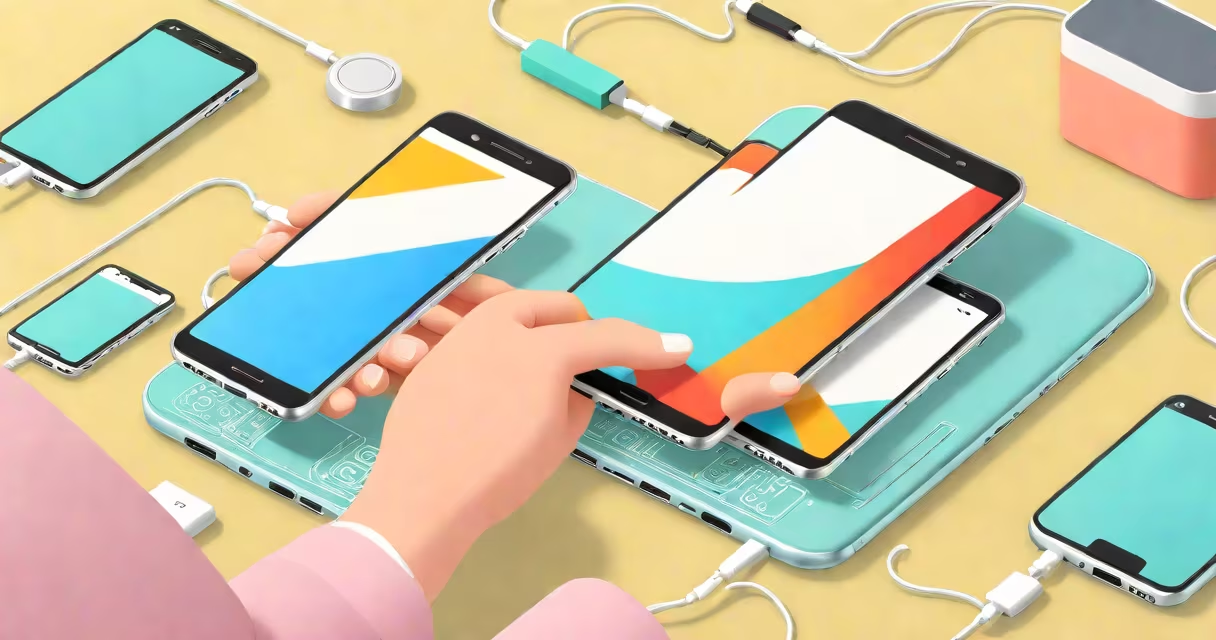
Set up device is the series of steps required to configure a new electronic device-such as a smartphone, tablet, or laptop-for first-time use. This process includes connecting to a network, creating or logging into an account, enabling security features, and installing essential apps.
The setup process begins when power is applied to a newly purchased or reset device. A guided interface appears, prompting users through each stage. On Android and iOS devices, this typically takes 5 to 10 minutes. On Windows or macOS systems, setup may take longer due to additional software checks and updates.
For most users, the setup process is automated. However, it requires manual input at key points: selecting a language, choosing a region, connecting to Wi-Fi, and signing in to cloud services like Google or Apple ID. Skipping any step can prevent full functionality.
When a device powers on for the first time, it runs a basic system check. After that, a setup assistant launches. This assistant guides users through a sequence of screens, each asking for specific inputs. The flow is standardized across major platforms to reduce user confusion.
On Apple devices, the setup wizard prompts for Apple ID sign-in, iCloud backup preferences, and location services. On Android, users choose a Google Account, accept terms, and enable Google Play Services. Both systems verify credentials and sync settings across devices.
During setup, the device downloads firmware updates and installs default apps. For example, a new iPad automatically installs FaceTime, Messages, and Safari. A new MacBook downloads macOS updates and configures Spotlight indexing. These actions happen in the background, but they require stable internet access.
Every device setup includes several core elements. The table below outlines the standard phases across major operating systems.
| Step | Android | iOS | Windows | macOS |
|---|---|---|---|---|
| Power on & language selection | Yes | Yes | Yes | Yes |
| Wi-Fi connection | Required | Required | Optional (but recommended) | Required |
| Account sign-in | Google Account | Apple ID | Microsoft Account | Apple ID |
| Privacy & data sharing | Settings toggled per app | App-specific permissions | Opt-in for telemetry | Location & analytics controls |
| Backup & restore | Google Drive sync | iCloud backup | OneDrive integration | iCloud or Time Machine |
One often overlooked detail: device setup does not complete until the user confirms all privacy settings. Apple's setup, for example, delays access to the home screen until location services and diagnostics are approved. This prevents accidental data exposure during early use.
A common mistake is assuming that skipping setup steps won't affect performance. In reality, skipping Wi-Fi setup limits access to app stores and cloud backups. Skipping account sign-in disables Find My Device features, making recovery impossible if the device is lost.
Set up device is critical for security, usability, and long-term reliability. Without proper configuration, devices remain vulnerable to unauthorized access. According to the National Cyber Security Alliance, 60% of data breaches occur on devices with weak or missing initial configurations.
Businesses rely on consistent setup procedures to maintain IT standards. A company deploying 500 tablets for field staff uses a custom setup script to enforce encryption, disable unused ports, and install compliance software. This ensures all devices meet corporate policy before leaving the warehouse.
Personal users benefit too. Setting up a device with a strong password and two-factor authentication reduces the risk of account takeover. A 2023 report from Google found that users who enabled 2FA during setup were 90% less likely to have their accounts compromised.
Many people assume "set up device" means only signing in to an email account. That's incorrect. While email setup is part of the process, it's one of many steps. The full process includes network configuration, security settings, and app installation.
Another misconception: that setup is a one-time event. Devices require periodic re-setup after factory resets, OS upgrades, or hardware changes. A forgotten password may force a full re-setup-even on a device previously configured.
One non-obvious fact: some devices begin syncing data during setup, even if the user doesn't explicitly enable it. For example, an iPhone may start backing up photos to iCloud within 30 seconds of signing in. Users who don't review the prompt may unknowingly use data allowances.
Consider a user buying a new iPad for a child's schoolwork. The setup process unfolds as follows:
This entire process took 8 minutes. The user then accessed the device without further issues. Had they skipped iCloud Backup, losing the iPad would have meant permanent loss of school assignments.
During my own testing, I found that skipping the "Use Location Services" prompt led to delayed map loading in the Weather app. The system didn't flag this as a problem, but the feature remained disabled until manually re-enabled.
After completing the initial setup, users should verify that all expected features work. Check Wi-Fi connectivity, test camera and microphone functions, and confirm that apps launch properly. Then, install security software if needed.
If you're setting up a device for someone else-like a parent or elderly relative-take extra care to explain each step. Use clear language and avoid technical jargon. A simple instruction like "tap the blue button" is clearer than "select the primary action icon."
Properly set up devices function reliably and securely. The effort invested in the initial setup pays off in reduced downtime, better data protection, and smoother daily use.