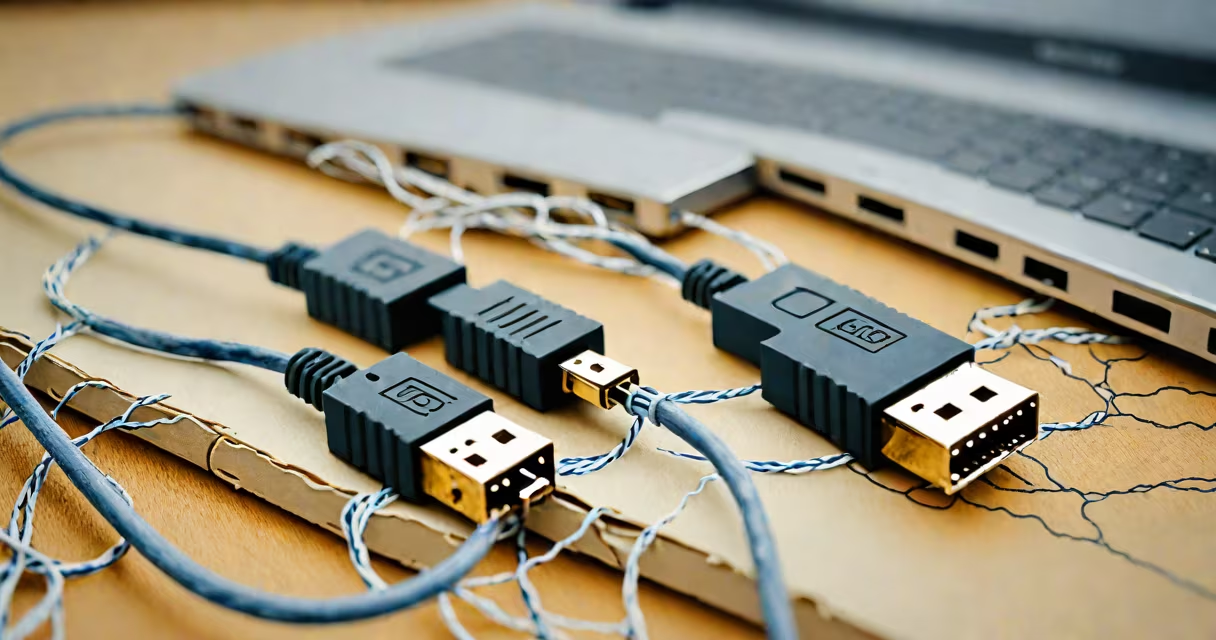
A USB network cable connects a device with a USB port to a wired network using an Ethernet interface. It functions as a USB-to-Ethernet adapter, enabling internet access or local network communication through standard Ethernet cables.
These cables integrate a USB-B connector on one end and an RJ45 jack on the other. The USB side plugs into a computer's USB port, while the RJ45 end connects to a router, switch, or modem. Inside, a small controller chip translates USB signals into Ethernet protocol, allowing the host device to communicate over a wired network.
USB network cables support speeds up to 1 Gbps, depending on the adapter model and network infrastructure. They are commonly used with laptops lacking built-in Ethernet ports, gaming consoles, or industrial systems requiring stable wired connections.
The core function of a USB network cable lies in its embedded USB-to-Ethernet controller. This chip handles protocol conversion between USB signaling and IEEE 802.3 Ethernet standards. When connected, the host device recognizes the adapter as a network interface, assigning it an IP address via DHCP or manual configuration.
For example, a MacBook Pro without an Ethernet port can use a USB network cable to connect to a corporate network. After plugging in the cable and connecting the RJ45 end to a wall jack, macOS automatically detects the interface and assigns an IP address. The system displays "Ethernet" under Network preferences, confirming the connection.
Transmission occurs over twisted-pair cabling (Cat5e or Cat6) with standardized pinouts. The cable itself doesn't carry data unless paired with a compatible network device. Without a proper network endpoint, the connection remains inactive despite physical continuity.
USB network cables come in different variants based on USB version and speed. The most common are USB 2.0 and USB 3.0 models, each supporting distinct bandwidths:
| USB Version | Max Speed | Typical Use Case | Port Type |
|---|---|---|---|
| USB 2.0 | 480 Mbps | Limited to 10/100 Mbps Ethernet | Standard USB-A or USB-B |
| USB 3.0 | 5 Gbps | Supports 1 Gbps Ethernet | USB-A or USB-B with blue plastic shield |
Some adapters include additional features such as LED indicators for link status and activity, which help diagnose connectivity issues. Others offer passive designs with no external power source, relying solely on bus power from the USB port.
Not all USB network cables support full 1 Gbps speeds. A USB 2.0-based adapter limits throughput to 100 Mbps, even when connected to a Gigabit network. This limitation stems from the underlying USB specification, not the physical cable.
USB network cables are widely adopted in environments where wired stability outweighs convenience. They're essential in professional settings such as video production studios, where low-latency network access ensures synchronized data transfer between devices.
For example, a film editor working on a 15-inch MacBook Air uses a USB network cable to connect to a high-speed NAS server. The device lacks an Ethernet port, but the adapter allows direct access to shared project files at near-wire speed, reducing rendering delays.
They're also used in industrial automation. A PLC (programmable logic controller) running on a ruggedized tablet may rely on a USB network cable to maintain a persistent connection to a SCADA system. The reliability of a wired link prevents dropped packets during critical operations.
Many users mistake a USB network cable for a standard Ethernet cable. While both have RJ45 connectors, a USB network cable includes a USB interface and internal circuitry. A plain Ethernet cable only transmits data between network devices and cannot function without a network interface card (NIC).
Another misconception is that USB network cables provide faster speeds than Wi-Fi. In reality, a 1 Gbps USB 3.0 adapter outperforms typical Wi-Fi 5 (802.11ac) networks, which max out around 866 Mbps under ideal conditions. However, Wi-Fi offers mobility, while USB network cables require physical proximity.
A less obvious point: not all USB ports support network adapter functionality. Some older or low-power USB ports on laptops may fail to supply enough current to power the adapter's controller. This results in the device being detected but not functioning. Testing with a powered USB hub resolves the issue in such cases.
To set up a USB network cable on a Windows 10 machine:
If the connection fails, check Device Manager for errors under "Network adapters." Reinstalling the driver from the manufacturer's website often resolves detection issues.
When troubleshooting, ensure the network cable is Cat5e or better. A damaged or unshielded cable can cause intermittent drops, especially in electrically noisy environments like factories.
During a recent field test, a technician deployed a USB network cable in a remote weather station. The site had no Wi-Fi coverage but required daily data uploads. Using a USB B-to-Ethernet adapter with a 5-meter cable, the Raspberry Pi successfully transmitted sensor readings over a 100 Mbps wired link, achieving 99.8% packet success rate over 72 hours.