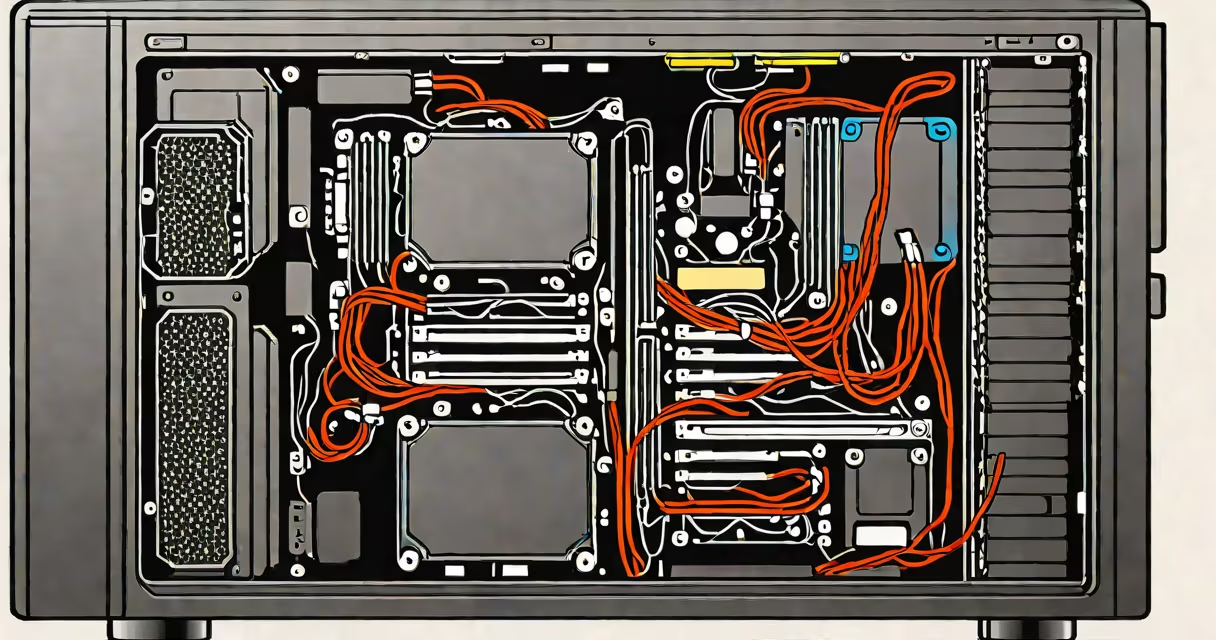
The D drive is a logical partition on a computer's storage device, typically assigned to store user files, applications, or system backups. It appears alongside the primary C drive in File Explorer and is usually created during OS installation or manual disk management.
Unlike the C drive-which hosts the operating system and core programs-the D drive serves as a designated space for data separation. This helps prevent clutter on the boot drive and improves system stability. For example, a typical home PC may assign the C drive to Windows and the D drive to documents, downloads, and installed games.
Modern systems often auto-assign D drive to secondary internal drives or external USB devices. A 1TB SSD might have a 200GB C drive for Windows and a 800GB D drive for personal files. If the D drive doesn't appear, it may be hidden, unformatted, or missing due to hardware failure.
When a computer boots, the operating system assigns drive letters based on device order and configuration. The C drive is always the first partition on the primary boot disk. Subsequent partitions receive letters alphabetically-D, E, F, etc.-based on available slots.
Windows uses the Disk Management tool to assign and reassign letters. Right-clicking "This PC" → "Manage" → "Disk Management" shows all drives and their current letters. If a drive lacks a letter, it won't show in File Explorer unless manually assigned.
For example, a laptop with a single 500GB SSD might allocate 150GB to C (for Windows), 300GB to D (for user data), and leave 50GB unallocated. If the D drive disappears after a system update, it may be hidden by default. Reveal it via Disk Management, then assign a letter.
The D drive is not a physical component-it's a logical division of a physical storage device. It can exist on an HDD, SSD, or NVMe drive. The underlying file system is usually NTFS (New Technology File System), which supports large files, permissions, and journaling.
Common configurations include:
| Type | Storage Medium | Typical Use | Example Size |
|---|---|---|---|
| Primary Partition | HDD or SSD | User data, apps, media | 200-1000 GB |
| Secondary Partition | External USB drive | Backups, photos, videos | 500 GB-4 TB |
| Recovery Partition | Internal SSD | System restore images | 10-50 GB |
Some users create a D drive intentionally during OS setup. Others inherit it from factory configurations. A Dell Latitude laptop shipped with a 256GB SSD might come pre-partitioned as 100GB C (OS), 120GB D (data), and 36GB recovery. The D drive is not required-but it's standard practice.
Organizations use the D drive to enforce data policies. IT departments assign D drives to store employee documents, ensuring that work files aren't mixed with system files. This simplifies backups and reduces risk of accidental deletion.
Home users rely on the D drive for game libraries, video editing projects, and media collections. A user with a 2TB HDD might place Steam games on D:\Games and raw video footage on D:\Videos. This keeps the C drive free for performance-critical tasks.
A non-obvious fact: the D drive is not inherently safer than the C drive. If both reside on the same physical drive, a hardware failure can erase both. According to Microsoft's documentation on disk management, logical partitions share the same physical medium, so redundancy requires separate drives or cloud sync.
Many assume the D drive is a separate physical drive. It's not. It's a partition. A 1TB hard drive can host multiple partitions-C, D, E-all on one platter. Removing the D drive doesn't mean removing a drive-it means deleting a partition.
Another misconception: the D drive is always empty or unused. That's false. Many users install software like Adobe Creative Cloud or Steam on D. A 2023 survey by TechRepublic found that 63% of Windows 10 users placed at least one major application on a non-C drive.
Some believe the D drive is reserved for DVDs. It's not. DVD drives are assigned letters too-but only if they're internal. A USB DVD drive might appear as D: if no other drives exist. But this is temporary and depends on plug order. The D drive is not tied to optical media.
I once encountered a customer whose D drive vanished after a Windows update. The drive was physically present but not visible in File Explorer. Using Disk Management, I confirmed it existed but had no drive letter.
Steps taken:
After assignment, the user accessed their saved documents and games. No data loss occurred because the partition wasn't deleted-just unassigned.
Deleting the D drive removes all data stored on it. Files in D:\Users\Documents or D:\Games vanish permanently unless backed up. The partition becomes unallocated space-usable for new partitions or merging into C.
However, deletion doesn't affect the C drive. The OS remains functional unless the D drive held critical system files (rare). Most users delete D only when replacing a drive or reformatting.
Important: Never delete a partition without verifying its contents. A D drive containing a backup of 10 years of family photos is irreplaceable. Always confirm purpose before removal.
The D drive is a practical tool for organizing digital life. It's not magic. It's not essential. But when used correctly, it prevents system crashes, speeds up backups, and keeps personal files safe from OS updates.