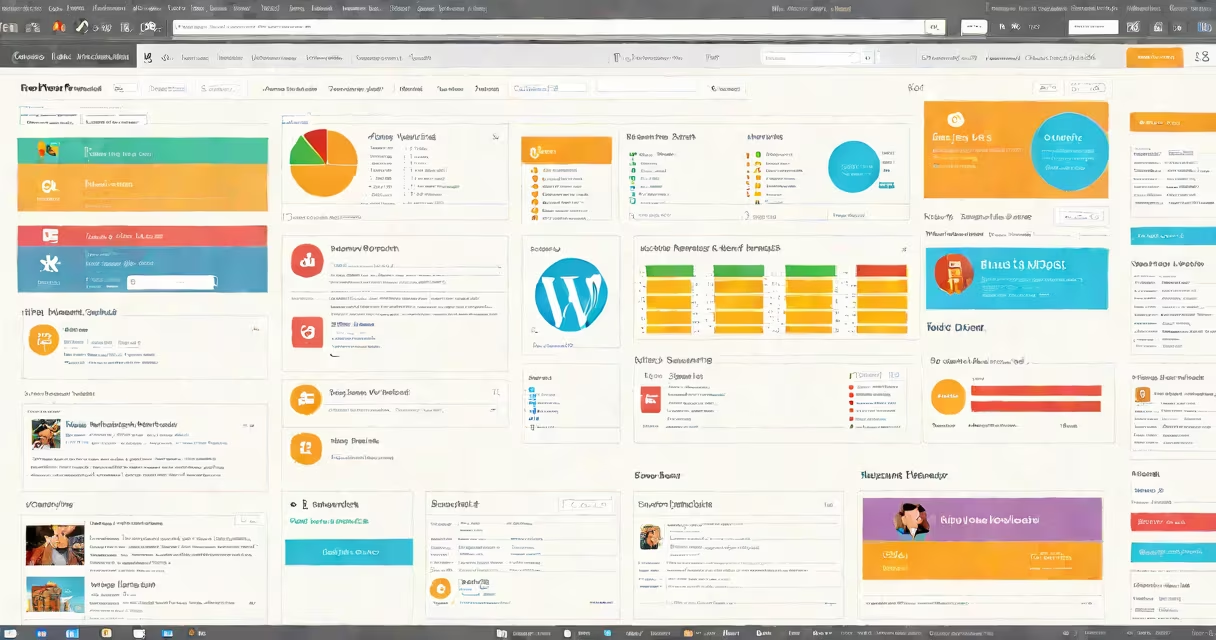
WordPress WP Admin is the central interface for managing a WordPress-powered website. It provides access to content editing, theme customization, plugin management, user settings, and site configuration through a web browser.
When you log into a WordPress site, you enter the WP Admin environment. This interface runs entirely in your browser and communicates with the site's server via HTTP requests. All actions-publishing posts, uploading media, installing plugins-are processed through this system. You don't need to install software or use command-line tools. Everything happens in the browser window.
The WP Admin is built on PHP, JavaScript, and REST APIs. It uses WordPress's core architecture, including the database schema and hooks system. Each screen-like Posts, Media, or Settings-is generated dynamically based on user permissions and installed plugins. For example, adding a new blog post triggers a form submission that saves data to the wp_posts table in the database.
WP Admin operates on a request-response model. When you click a menu item, your browser sends a GET request to the site's /wp-admin/ endpoint. The server processes the request using PHP, checks your login status and role permissions, then returns an HTML page tailored to your access level.
For actions like saving a post, the browser sends a POST request to a specific URL (like /wp-admin/post-new.php). The server validates the data, checks nonce tokens for security, and stores the content in the database. After success, it redirects you to a confirmation screen or the list of posts.
Every element in the interface-menus, buttons, dropdowns-comes from WordPress core files or plugin code. Plugins extend functionality by injecting new admin screens. For example, WooCommerce adds a "Products" menu under "WooCommerce" in the left sidebar. These screens are registered using the add_menu_page() function in PHP.
WP Admin consists of several key areas:
These components are grouped into functional categories. Some appear only to users with specific roles. Administrators see all options. Editors see Posts, Pages, and Media. Contributors only see Posts and Media.
There are three main user roles affecting what you see in WP Admin:
| Role | Access Level | Visible Features |
|---|---|---|
| Administrator | Full access | All menus, plugin settings, user management |
| Editor | Content-only | Posts, Pages, Media, Comments |
| Contributor | Basic content | Posts, Media (upload only) |
Permissions are enforced through capability checks. For example, editing a post requires the 'edit_post' capability. If you lack it, the Edit button won't appear. This prevents accidental changes by low-privilege users.
Many people assume WP Admin is only for bloggers. That's incorrect. It's used by e-commerce sites, portfolios, membership platforms, and corporate intranets. A single WP Admin instance manages everything from product listings to event calendars.
A common mistake is confusing WP Admin with the frontend site. The frontend is what visitors see-the homepage, blog posts, contact forms. WP Admin is behind the scenes. You can't publish content or change design from the public-facing version. They're separate environments.
Another error: thinking the admin area is secure by default. It isn't. Default login URLs like /wp-login.php are frequently targeted by bots. Brute-force attacks happen thousands of times daily. Using strong passwords and limiting login attempts via plugins like Wordfence reduces risk.
For example, a small business owner using WordPress to run a local bakery site uses WP Admin to update weekly specials. She logs in, goes to Posts > Add New, writes a post titled "New Seasonal Croissant," uploads a photo from her phone, sets the category to "Specials," and publishes. The post appears live within seconds on the public site.
I once helped a nonprofit migrate their old static site to WordPress. Their volunteer team had no technical training. We trained them to use WP Admin to add events, upload flyers, and send newsletters. After one session, they were publishing content independently. The interface's consistency across sites made learning easy.
WP Admin supports custom admin screens through the admin_menu hook. Developers create new menus using add_submenu_page(). These screens can display reports, export data, or manage complex workflows. For example, a fitness coaching site might have a "Client Progress" tab showing workout logs and nutrition plans.
One non-obvious fact: WP Admin doesn't store content directly. It references files and database entries. Deleting a post removes the row from wp_posts but leaves the attached media file unless you manually clean up. This causes storage bloat over time. Use tools like WP-Improve to remove orphaned files.
Security is critical. Never share your login credentials. Avoid using weak passwords like "password123." Enable two-factor authentication via plugins such as Google Authenticator. Also, disable direct access to wp-config.php and.htaccess files.
For advanced users, you can customize the admin interface using code in functions.php or a child theme. Remove unnecessary menu items with remove_menu_page(). Hide the WordPress version number in the footer by adding a filter. These tweaks improve usability and reduce attack surface.
Always keep WordPress core, themes, and plugins updated. Outdated versions introduce known vulnerabilities. The WordPress team releases security patches monthly. Delaying updates increases exposure to exploits.
WP Admin is not a standalone application. It's a web-based interface tied to your hosting provider's server. If your site goes offline due to server issues, you lose access to WP Admin until the server restarts. Regular backups ensure you can restore your site even if the admin becomes unreachable.
Understanding WP Admin isn't optional for anyone managing a WordPress site. It's the foundation of content control, site maintenance, and feature expansion. Mastering it means controlling your site's behavior, appearance, and performance.