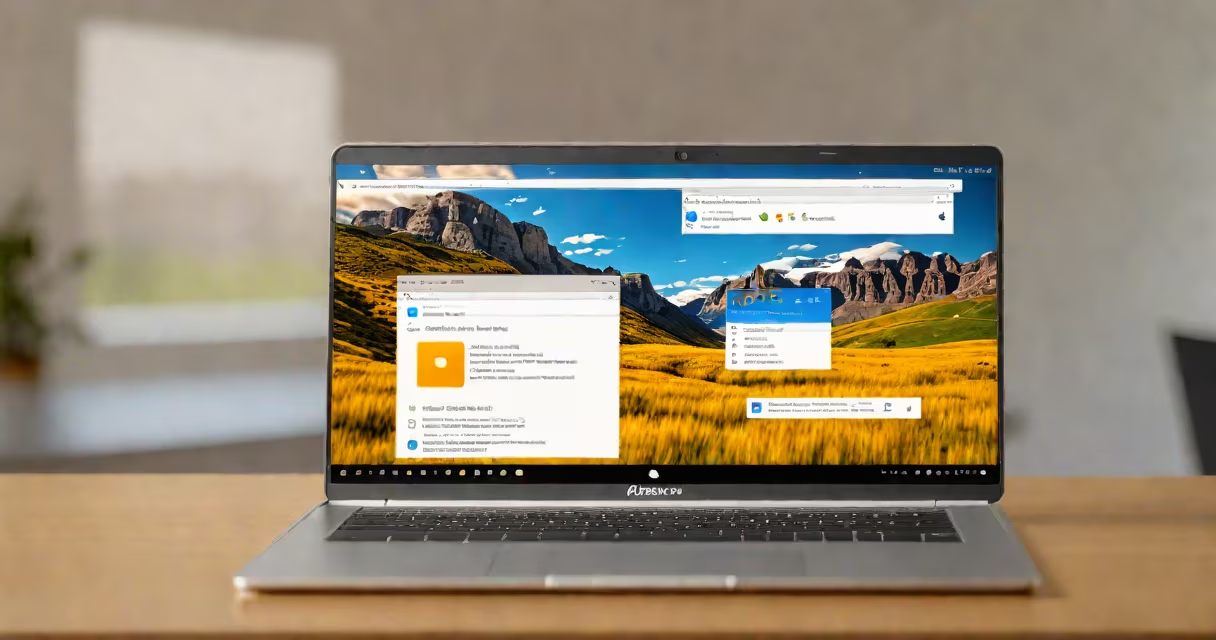
Chromebook RDP to Windows enables remote access to a Windows PC from a Chromebook using the Remote Desktop Protocol (RDP), allowing users to run Windows applications, manage files, and control a desktop environment as if sitting at the machine.
RDP is a proprietary protocol developed by Microsoft that allows secure remote connections to Windows systems. On a Chromebook, this functionality is accessed through a compatible RDP client app available in the Google Play Store or via web-based tools. The connection requires the target Windows machine to have Remote Desktop enabled and a static IP address or consistent network location.
For example, a student using a Chromebook at home can connect to their university lab computer running Windows 10. After enabling Remote Desktop on the lab machine and configuring firewall settings, they launch the Microsoft Remote Desktop app on their Chromebook, enter the lab PC's IP address, and log in with their credentials. The session appears as a full-screen Windows desktop, responsive to touchpad gestures and keyboard inputs.
The process begins with the Windows machine being configured to accept incoming RDP connections. This involves enabling Remote Desktop in System Properties under the "Remote" tab and ensuring the Windows Firewall allows port 3389 (the default RDP port).
On the Chromebook side, users install a certified RDP client such as Microsoft's official Remote Desktop app from the Google Play Store. Once installed, the app prompts for the target PC's IP address or hostname, the username, and password. After authentication, the Chromebook establishes a TCP connection to the Windows machine, which then streams graphical updates and sends back input events like mouse movements and keystrokes.
Network stability affects performance. A wired Ethernet connection provides lower latency than Wi-Fi. For users on unstable networks, adjusting the display quality in the RDP client settings reduces bandwidth usage and improves responsiveness. Some Chromebooks support hardware-accelerated video decoding, which enhances rendering speed during high-motion tasks like video playback.
Several RDP clients work on Chromebooks. The most widely used is Microsoft's Remote Desktop app, available through the Google Play Store. It supports multi-monitor layouts, clipboard sharing, and audio redirection. Other options include Royal TSX and RDP Client Pro, though these may require additional configuration.
| Client Name | Platform | Key Features | Free? |
|---|---|---|---|
| Microsoft Remote Desktop | Android (via Play Store) | Multi-monitor, clipboard sync, audio redirection | Yes |
| RDP Client Pro | Android | Custom themes, session logging, advanced security | No (freemium) |
| Web-based RDP | Chrome browser | Zero installation, accessible from any device | Yes (limited features) |
Web-based RDP solutions like those hosted on Azure Virtual Desktop or AWS WorkSpaces allow access without installing an app. These services use HTML5 to render the remote desktop in a browser tab. However, they often require subscription fees and are less suitable for offline use.
A common misconception is that Chromebooks can natively run RDP without third-party software. They cannot. The Chrome OS kernel does not include an RDP client by default. Users must install an Android-compatible app or use a web-based interface. Even then, performance varies based on the Chromebook model and the host Windows system's resources.
Connection failures are frequent when the Windows machine is behind a router without port forwarding. To resolve this, configure the router to forward port 3389 to the internal IP address of the Windows PC. Alternatively, use a changing DNS service if the public IP changes frequently.
Another issue arises when the Windows account lacks Remote Desktop permissions. Only users in the "Remote Desktop Users" group can log in via RDP. Administrators can assign this role through Local Users and Groups in the Computer Management console. For domain-joined machines, group policies may restrict access based on organizational rules.
I once encountered a case where a user's Chromebook failed to connect due to a mismatched certificate authority. The Windows machine was set to require encryption level "High," but the Chromebook's client defaulted to "Client Compatible." Changing the setting in the Windows RDP security policy to "Client Compatible" resolved the issue. This detail is often overlooked in guides.
For troubleshooting, verify that the Windows machine is online and reachable via ping. Check the Windows Event Viewer for error codes related to RDP, such as 0x204 (access denied) or 0x206 (connection limit reached). Restarting the Remote Desktop Services daemon via PowerShell with Restart-Service TermService can restore connectivity.
Never expose port 3389 directly to the internet. Use a virtual private network (VPN) or a reverse proxy with TLS termination to secure access. If you must use public internet access, enable Network Level Authentication (NLA) on the Windows side to prevent brute-force attacks.
Use strong passwords and consider enabling two-factor authentication for the Windows account. Avoid saving credentials in the RDP client unless the Chromebook is locked down and trusted. The Microsoft Remote Desktop app offers a "Remember password" option, but it stores encrypted data locally, not in the cloud.
For organizations managing multiple devices, deploy RDP profiles through Mobile Device Management (MDM) tools. These allow centralized configuration of connection settings, access controls, and audit logs. This approach is standard in schools and enterprises using Chromebooks for remote learning or IT support.
Chromebook RDP to Windows is not limited to personal use. IT departments use it to troubleshoot student devices, faculty access remote labs, and maintain servers. With proper configuration, it delivers a stable, low-latency experience ideal for remote work and education.