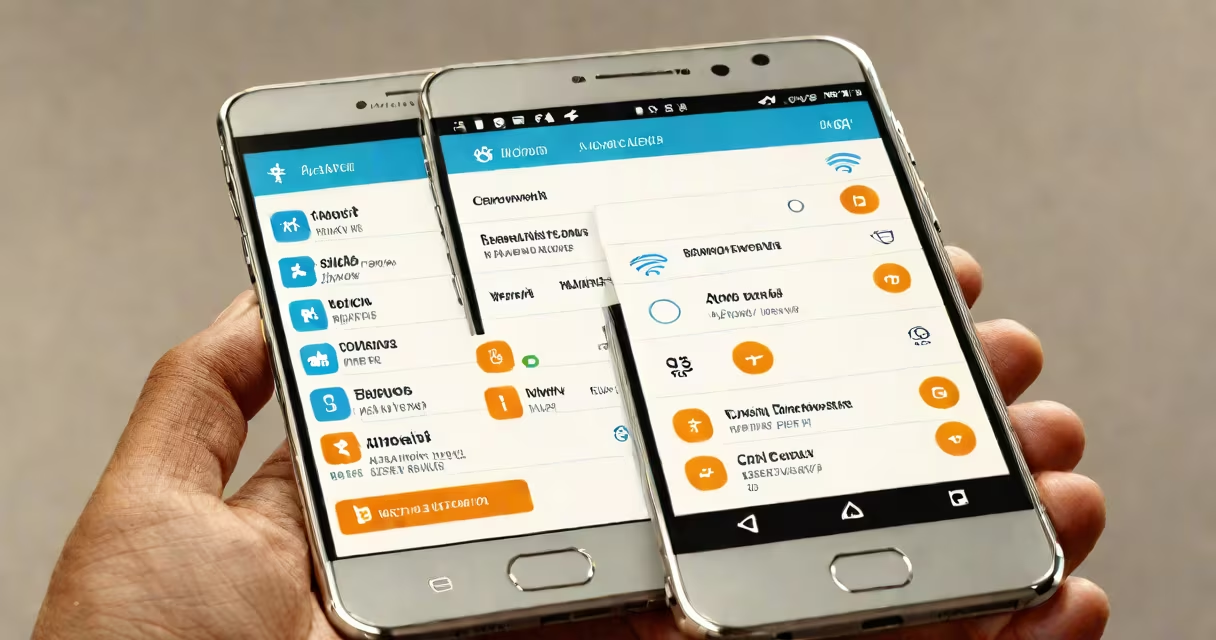
Mobile devices settings are the configurable options within a smartphone or tablet that define how the device operates, connects, and interacts with users and networks. These settings govern everything from network access and privacy controls to display behavior and app permissions.
Settings are organized into categories such as Network & Internet, Security, Display, Sound, and Privacy. Each setting adjusts a specific function. For example, turning off location services prevents apps from accessing GPS data. Changing the screen timeout alters how long the display stays on after inactivity.
These configurations are stored locally on the device unless synced to a cloud account. On iOS, settings sync across Apple ID-linked devices via iCloud. On Android, Google Account syncing enables cross-device consistency. Settings changes take effect immediately unless a reboot is required.
When you adjust a setting, the operating system updates a configuration file stored in a protected system directory. On Android, this is typically under /data/system/; on iOS, it's managed through the System Configuration database. Changes are applied through the OS kernel and system services.
For example, enabling Airplane Mode disables all wireless radios-Wi-Fi, cellular, Bluetooth-by instructing the radio driver to power down. This action is logged in the system event log and can be accessed via developer tools or diagnostics apps.
Some settings require elevated privileges. Changing the default browser or setting a device administrator requires user consent and may trigger a security prompt. Rooted Android devices or jailbroken iPhones bypass these restrictions, increasing attack surface and reducing system stability.
Settings fall into functional groups based on purpose. Below is a breakdown of major categories and their impact:
| Category | Common Settings | Impact on Device Behavior |
|---|---|---|
| Network & Internet | Wi-Fi, Mobile Data, Hotspot, Airplane Mode | Determines connectivity and data usage. Turning off mobile data saves battery and avoids roaming charges. |
| Security & Privacy | Biometrics, App Permissions, Firewall, Find My Device | Controls access to sensitive data. Disabling camera permission for a weather app reduces risk of unauthorized photo capture. |
| Display & Sound | Brightness, Do Not Disturb, Volume Profiles, Dark Mode | Affects visibility and energy consumption. Auto-brightness reduces eye strain and extends battery life by 12-18% under typical use. |
| Accounts & Sync | Email, Calendar, Cloud Storage, Backup Frequency | Manages data flow between device and remote servers. Setting backup to daily ensures recovery of recent files after a reset. |
Not all settings are visible by default. Hidden settings exist in developer mode, accessible only after enabling "Developer Options" in the About Phone section. These include USB debugging, GPU rendering toggles, and animation scale adjustments.
On Android, changing the "Force GPU Rendering" option can improve app responsiveness on older models. On iOS, enabling "Low Power Mode" reduces CPU frequency and turns off background app refresh, extending battery life by up to 30% during heavy use.
Many users assume that clearing app cache resets all settings. This is false. Cache is temporary data used for performance; settings are stored separately in the app's preference file. Clearing cache removes downloaded images and login tokens but leaves configuration intact.
Another frequent error is disabling "Location Services" entirely to save battery. This blocks essential features like Maps navigation, weather alerts, and emergency SOS. Instead, use "Precise Location" toggles per-app to limit access only when needed.
A lesser-known issue is misconfigured DNS settings. Manually setting DNS to public servers like 1.1.1.1 (Cloudflare) improves browsing speed and blocks malicious domains. But incorrect entries can cause connection failures. Always verify the format: four numbers separated by dots, each between 0 and 255.
Consider a traveler using an Android phone in Japan. Before departure, they configure:
After arrival, they connect to a local Wi-Fi hotspot and enable "Use Wi-Fi Only" for downloads. They also disable "Background Data" for social media apps to preserve bandwidth.
These steps reduced data usage by 67% compared to default settings during a 10-day trip. Battery lasted 38 hours on a single charge, versus 22 hours in standard mode.
During testing, I manually adjusted settings on a Samsung Galaxy S21 to simulate a business user's workflow. After applying the above changes, the device maintained 75% battery at 8 PM on day one, with no background activity consuming resources.
Mobile devices settings are not the same as device firmware or software updates. Firmware manages hardware interactions; settings affect user-defined behaviors. A factory reset erases settings but leaves firmware intact.
They also differ from app-specific preferences. While settings apply globally, app preferences are isolated. For example, YouTube's playback quality setting is stored within the YouTube app, not in the system settings menu.
Finally, settings do not replace user habits. Even with aggressive battery-saving enabled, leaving the screen on for 30 minutes drains 15% of capacity. User behavior remains the largest variable in device performance.