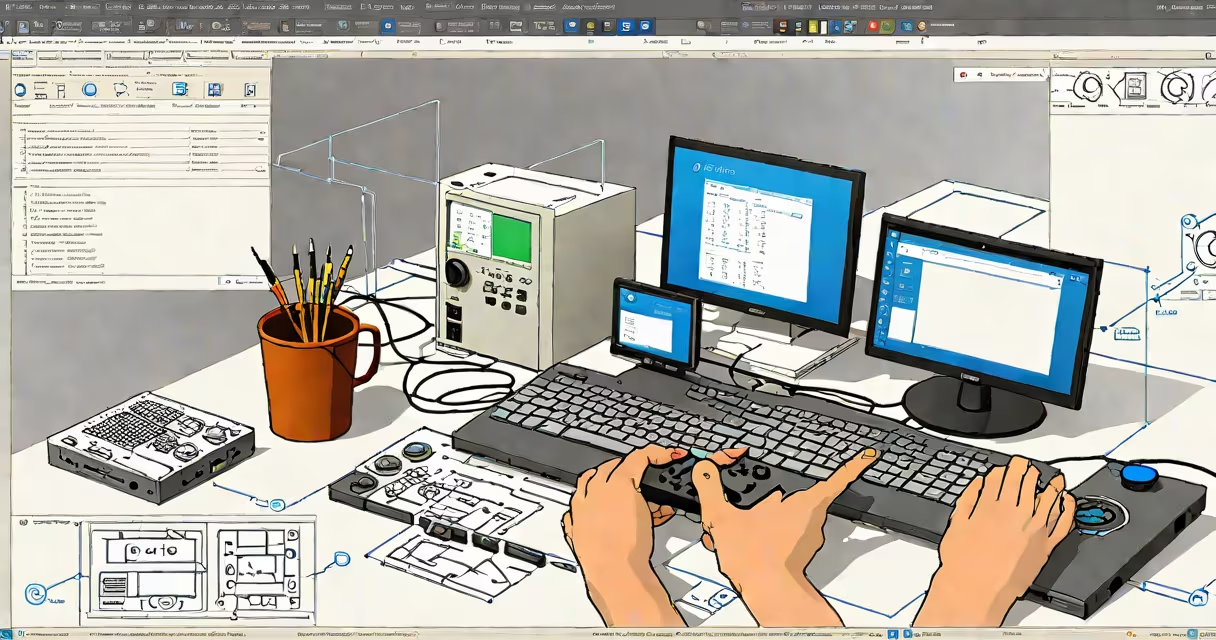
A pc remote application enables direct control of a computer from a different device over a network or internet connection. It transmits keyboard, mouse, and screen inputs in real time, allowing users to operate the remote machine as if sitting in front of it.
These tools work by establishing a secure connection between the host (the computer being accessed) and the client (the device doing the controlling). The host runs a service that listens for incoming requests, while the client sends commands and displays the remote desktop feed. Most applications use encrypted protocols like TLS or RDP to protect data in transit.
Common use cases include IT support, remote work, accessing home computers from office locations, and managing servers. They're essential for professionals who need consistent access to high-performance systems without physical presence.
When you launch a pc remote application, the client device connects to the host system through a network interface-either via Wi-Fi, Ethernet, or the internet. The host must have a compatible remote access service running and configured to accept connections.
The connection process begins with authentication. You enter credentials-such as a username and password, or a token-on the client side. Once verified, the remote application establishes a session. The host captures screen updates at regular intervals (typically 15-60 frames per second), compresses the video stream, and sends it to the client.
Simultaneously, the client forwards input events-mouse movements, clicks, keystrokes-to the host. The host processes these actions and returns updated visuals. This loop continues until the session ends. Latency depends on bandwidth, processing power, and network stability. A 100 Mbps connection can deliver near-real-time performance; slower lines may cause noticeable delays.
Remote access solutions fall into two broad categories: proprietary software and built-in operating system features.
| Type | Examples | Best For | Security Level |
|---|---|---|---|
| Third-party apps | TeamViewer, AnyDesk, Chrome Remote Desktop | Quick setup, cross-platform access, remote support | High (end-to-end encryption) |
| Built-in OS tools | Windows Remote Desktop, macOS Screen Sharing, Linux VNC | Internal networks, trusted environments, minimal overhead | Moderate to high (depends on configuration) |
Third-party tools often prioritize ease of use. TeamViewer, for example, requires no port forwarding or firewall changes-just install the app on both devices and share a temporary ID. This makes it ideal for non-technical users needing urgent assistance.
Native tools like Windows Remote Desktop offer better integration with enterprise environments. They support group policies, domain authentication, and centralized logging. However, they require proper network setup, including enabling the Remote Desktop service and configuring Windows Firewall rules.
One common misconception is that all pc remote applications require a public IP address. That's false. Many tools use relay servers to establish connections through NATs and firewalls. TeamViewer and AnyDesk route traffic through their own infrastructure when direct connections fail, making them usable even behind restrictive corporate networks.
I've used AnyDesk to troubleshoot a colleague's laptop during a conference call. The device was behind a hotel firewall with no admin access. I connected remotely using the shared ID, diagnosed a corrupted driver, and rolled back the update-all within eight minutes. The session ran smoothly despite a 150 ms ping.
Performance varies based on resolution and activity level. High-resolution displays (4K) and graphics-intensive tasks (video editing, gaming) can cause lag or reduced frame rates. Some tools throttle video quality automatically under low bandwidth conditions.
Security risks exist when misconfigured. Leaving Remote Desktop open to the internet without strong passwords invites brute-force attacks. According to the Cybersecurity and Infrastructure Security Agency (CISA), unpatched RDP services were involved in 73% of ransomware incidents in 2023. Always disable remote access when not in use and enforce multi-factor authentication.
Another overlooked issue is audio and peripheral redirection. Not all pc remote applications handle USB devices or speakers reliably. Some require additional drivers or manual configuration. If you're using a scanner or external monitor, test compatibility beforehand.
Many assume that "remote desktop" and "VNC" are interchangeable. They're not. VNC (Virtual Network Computing) is a protocol that predates modern remote tools. While it supports cross-platform access, it lacks native encryption and performs poorly over high-latency connections. Modern tools like Chrome Remote Desktop use WebRTC for faster, more efficient streaming.
Another error is relying solely on free versions. Free tiers often limit session duration, restrict file transfer, or disable advanced features. For business use, investing in licensed software ensures compliance, support, and scalability.
Finally, users sometimes confuse remote access with remote backup. A pc remote application controls the system-it doesn't copy files. To back up data, use dedicated tools like Windows Backup, rsync, or cloud sync services. Running backups over a remote session can slow down both machines and increase risk of corruption.
For those managing multiple systems, consider centralized remote access platforms like Remote Utilities or Parsec. These allow bulk deployment, role-based access, and audit logs. They're designed for teams, not individual users.
Understanding how a pc remote application functions helps avoid performance issues, security gaps, and workflow disruptions. Choose the right tool based on your environment, required features, and security needs.