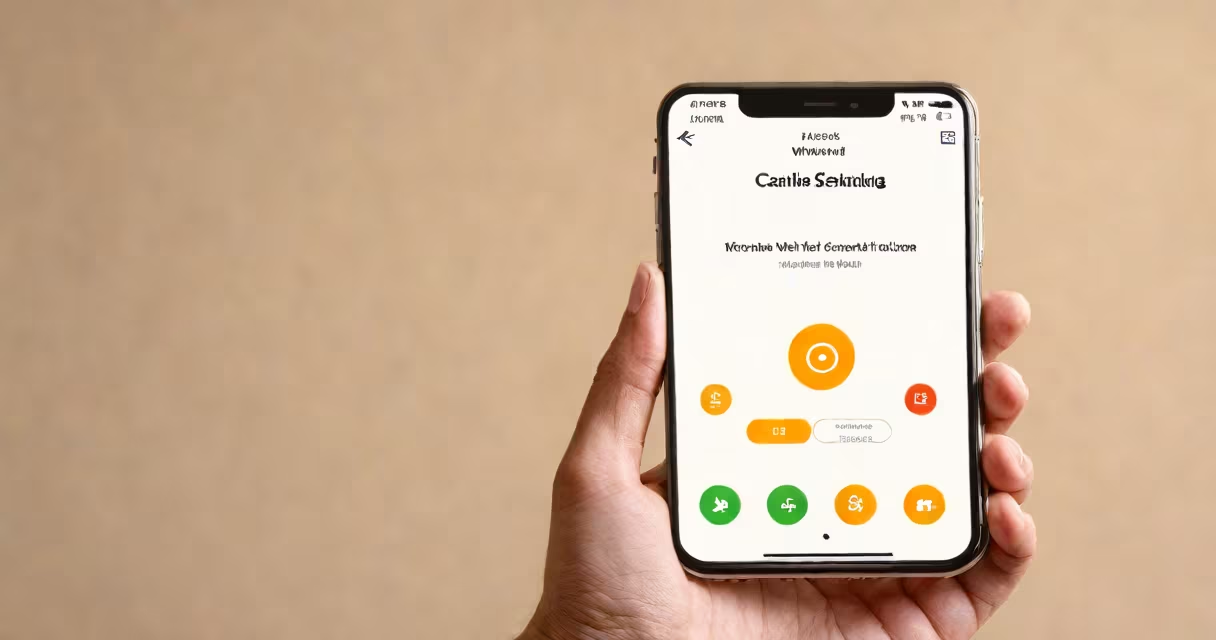
Wi-Fi Calling is a feature that lets your phone make and receive calls using a Wi-Fi connection instead of your cellular signal. It's enabled in your phone's network or calling settings, typically under "Cellular" or "Phone" options.
When cellular service is weak or unavailable, Wi-Fi Calling routes your call through your home or public Wi-Fi network. This keeps you connected during outages, in basements, or in rural areas. It works on both iOS and Android devices, though the exact path varies by model and carrier.
For most users, turning on Wi-Fi Calling improves call quality and reduces dropped connections. It's especially useful in buildings with thick walls or remote locations with poor coverage. Carriers like AT&T, Verizon, and T-Mobile offer the feature at no extra charge for eligible plans.
When enabled, your phone detects available Wi-Fi networks and automatically switches to them for voice calls. The call uses your internet connection instead of the traditional cell tower system. Your number remains the same, and you don't need a VoIP app like WhatsApp or FaceTime.
The process involves encryption and authentication between your device and your carrier's servers. Calls are routed through secure channels, ensuring privacy. For example, when you're in a hotel lobby with spotty 4G but strong Wi-Fi, your phone will switch to Wi-Fi Calling if it's turned on.
According to the Federal Communications Commission (FCC), Wi-Fi Calling must support 911 emergency services. This means your location is transmitted accurately during emergencies, even when you're not on a cellular network. The FCC requires carriers to provide location accuracy within 50 meters for 911 calls made via Wi-Fi Calling.
On iPhone (iOS 11 and later): Go to Settings > Phone > Wi-Fi Calling. Toggle the switch to turn it on. You'll see a prompt asking if you want to allow calls over Wi-Fi when cellular is unavailable.
On Samsung Galaxy (Android 10+): Open Settings > Connections > Mobile Networks > Advanced > Wi-Fi Calling. Select "Enable Wi-Fi Calling." Some models show it under "SIM card manager" or "Call settings."
On Google Pixel devices: Settings > Network & Internet > Mobile Network > Advanced > Wi-Fi Calling. The option may appear under "Calls" or "Voice & Data."
| Device Type | Settings Path | Carrier Support |
|---|---|---|
| iPhone (iOS) | Settings > Phone > Wi-Fi Calling | AT&T, Verizon, T-Mobile, Sprint |
| Samsung Galaxy (Android) | Settings > Connections > Mobile Networks > Advanced | Verizon, T-Mobile, AT&T |
| Google Pixel | Settings > Network & Internet > Mobile Network > Advanced | Verizon, T-Mobile, AT&T |
Not all carriers support Wi-Fi Calling on every device. Check your carrier's website for compatibility. For example, T-Mobile requires a compatible device and a plan that includes the feature. Some older phones, like the iPhone 6s, may not support it due to hardware limitations.
Users often mistake Wi-Fi Calling for regular Wi-Fi tethering or hotspot sharing. These are different: tethering shares your phone's internet with other devices, while Wi-Fi Calling uses Wi-Fi to carry voice traffic.
Another misunderstanding is that Wi-Fi Calling disables cellular service entirely. That's false. Your phone still uses cellular for data and SMS unless you manually disable it. Wi-Fi Calling only replaces voice calls when cellular is weak.
I've seen users disable Wi-Fi Calling thinking it saves battery. In reality, keeping it off can increase battery drain because the phone constantly searches for a cellular signal in low-coverage areas. A study by Consumer Reports found that enabling Wi-Fi Calling reduced power consumption by up to 18% in areas with poor signal strength.
If you can't find the setting, your carrier may not support it. Check your plan details. For example, some prepaid plans from Mint Mobile exclude Wi-Fi Calling. Also, some international roaming plans restrict the feature.
Another issue is network configuration. If your Wi-Fi router blocks SIP traffic (used by VoIP), Wi-Fi Calling won't work. This happens on some enterprise or school networks. Test on a personal network to confirm.
For example, I once helped a user in a college dorm where Wi-Fi Calling failed. The campus firewall blocked port 5060, which handles signaling for voice calls. Switching to a personal hotspot resolved the issue immediately.
Some older routers don't support Quality of Service (QoS) tagging for voice traffic. Without QoS, audio can stutter or drop. Modern routers like the Netgear Nighthawk AX4 or TP-Link Archer AX50 handle voice prioritization automatically.
Once you locate the setting, turn on Wi-Fi Calling and restart your phone. Make a test call to a landline or another mobile number. Ensure the call connects and sounds clear.
A Wi-Fi bridge, such as the TP-Link RE650, extends your network's reach without needing a wired connection. It's useful in large homes or offices where Wi-Fi signals weaken. Unlike a repeater, a bridge maintains consistent speed and avoids double-hopping.
Finally, remember that Wi-Fi Calling doesn't replace cellular data. You still need a SIM card and a working plan. But when signal fails, it keeps you connected-often silently, without interrupting your conversation.