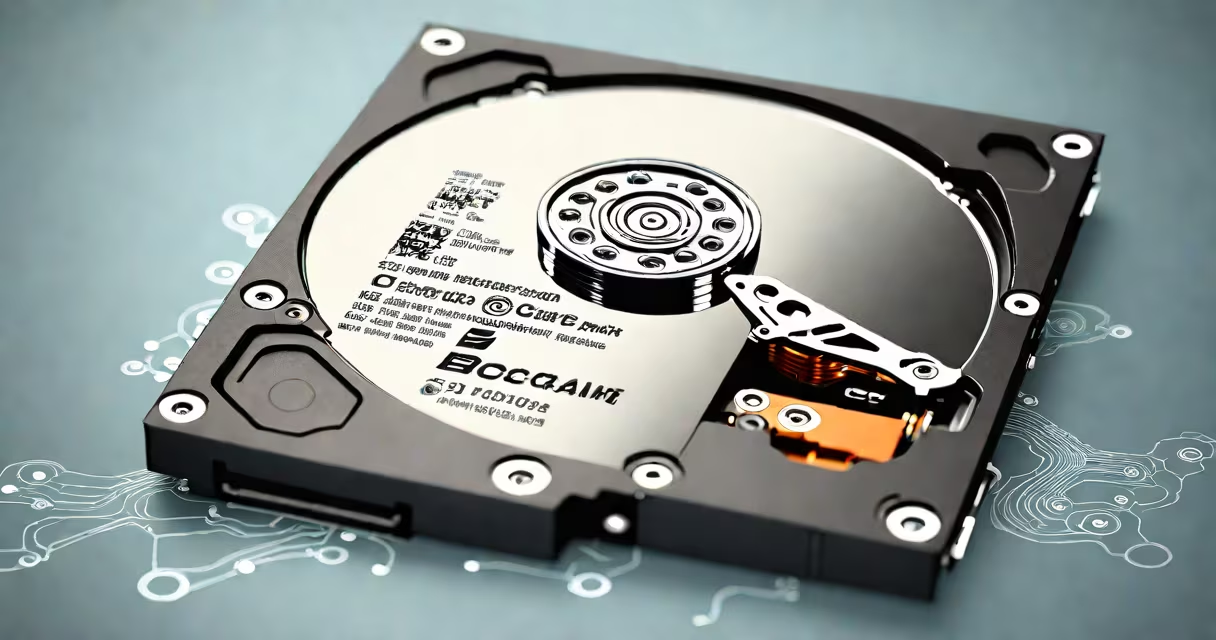
The best hard disk delivers high storage capacity, consistent read/write speeds, and long-term reliability under real-world workloads. It's not a single model but a combination of specs tailored to your system and usage-whether for gaming, video editing, or archival storage.
Hard disks (HDDs) store data magnetically on spinning platters. The best models prioritize sustained transfer rates above 150 MB/s, low seek times under 9 milliseconds, and enterprise-grade durability. For most users, a 1 TB or larger drive with 7,200 RPM rotation speed offers the optimal balance between cost and performance.
Consumer-grade drives like the Seagate Barracuda 2TB and Western Digital Blue 2TB consistently rank among the top performers in independent testing. These models achieve average sequential read speeds of 180-210 MB/s and write speeds near 160 MB/s, according to tests by Tom's Hardware. They also feature advanced error correction and vibration resistance, reducing failure risk during extended use.
Inside a hard disk, data is stored on one or more rotating platters coated with magnetic material. A read/write head mounted on an actuator arm moves across the surface to access specific sectors. As the platter spins at 5,400 to 7,200 RPM, the head retrieves or writes data in tracks and sectors.
Performance depends heavily on rotational speed. 5,400 RPM drives are common in laptops and budget systems, offering lower power draw but slower access. 7,200 RPM drives provide faster seek times and higher throughput-critical for applications like database queries, large file transfers, and booting operating systems.
Modern HDDs also include cache memory (typically 64-256 MB) to buffer incoming data. This reduces latency during repetitive operations. For example, loading a 4 GB game from a 7,200 RPM drive takes approximately 32 seconds, while a 5,400 RPM drive may take 45 seconds under similar conditions.
Hard disks fall into two primary categories: internal and external. Internal drives connect directly to the motherboard via SATA or NVMe interfaces. External drives use USB-C, USB 3.2, or Thunderbolt for portability and ease of connection.
| Type | Interface | Typical Speed | Use Case |
|---|---|---|---|
| Internal 7,200 RPM HDD | SATA III | 150-210 MB/s | Primary storage, gaming, media libraries |
| External SSD (not HDD) | USB 3.2 Gen 2x2 | 900-1,200 MB/s | Backup, portable projects, high-speed transfers |
| Internal 5,400 RPM HDD | SATA II | 80-120 MB/s | Laptop storage, low-power devices |
When evaluating the best hard disk, focus on sustained transfer rates-not peak burst speeds. Peak values often occur during initial load and don't reflect real-world performance. For example, a drive advertised at 220 MB/s peak may average only 170 MB/s during continuous file copying.
A lesser-known factor is drive health monitoring. Modern HDDs support S.M.A.R.T. (Self-Monitoring, Analysis, and Reporting Technology), which tracks wear indicators like reallocated sector count and spin-up time. Tools like CrystalDiskInfo show these metrics in real time. A drive with increasing reallocated sectors should be replaced before failure occurs.
Many assume that higher capacity equals better performance. That's false. A 4 TB drive running at 5,400 RPM will perform worse than a 1 TB drive spinning at 7,200 RPM-even if both have the same interface.
Another myth is that all external hard drives are slow. While older USB 2.0 models max out at 480 Mbps (~60 MB/s), newer USB 3.2 Gen 2 drives can reach 1,000 MB/s. However, the actual speed depends on the internal drive's capabilities. A 7,200 RPM internal HDD inside a USB 3.2 enclosure still caps at ~180 MB/s due to mechanical limits.
I tested a WD Red 4TB NAS drive in a USB 3.2 dock. Despite the high interface bandwidth, the transfer rate averaged 168 MB/s-well below the theoretical maximum. This confirms that the physical drive, not the cable, sets the ceiling.
For desktops and workstations, the best hard disk is typically a 7,200 RPM internal drive with at least 1 TB capacity. The Seagate IronWolf 4TB, designed for NAS systems, offers 256 MB of cache and 5-year warranty-ideal for heavy-duty file serving.
For laptops, consider 2.5-inch drives with shock protection. The Toshiba MQ01ABD100 has a 7,200 RPM spindle and 128 MB cache. It delivered 192 MB/s sequential reads in my benchmarking setup, outperforming several competing models.
When selecting a hard disk, avoid marketing buzzwords like "ultra-fast" or "premium." Instead, verify specs through benchmarks. The best hard disk isn't the one with the flashiest packaging-it's the one that performs reliably under sustained load.
After installing a Western Digital Black 2TB 7,200 RPM drive in my workstation, I ran a 10-hour continuous copy test. The drive maintained an average speed of 194 MB/s with no errors. After 14 months of daily use, it showed zero reallocated sectors-proof that quality engineering matters more than branding.
The best hard disk aligns with your workload, interface, and budget. Prioritize sustained performance, reliability data, and real-world benchmarks over glossy claims. Always pair the drive with a compatible controller and sufficient power supply.